Quick Answer
The Best AI Tools for Students to Practice Presentations depend on what you want to improve.
• Yoodli — strongest fit for dedicated speaking and presentation rehearsal, with AI feedback and follow-up Q&A practice.
• Microsoft PowerPoint Speaker Coach — excellent for rehearsing an actual slide deck while receiving feedback on pacing, filler words, pitch, and whether you are reading your slides.
• ChatGPT — useful as a flexible practice partner for presentation structure, explanations, audience questions, and mock Q&A.
• Google Gemini — useful for working through presentation material and practicing explanations around your content.
• Claude — useful for reviewing presentation logic, explanations, and possible audience questions.
• Canva — more useful for presentation creation and visual preparation than for dedicated speaking analysis.
• SlidesAI — primarily useful for creating presentation content rather than evaluating your live delivery.
The important distinction is that presentation creation and presentation practice are not the same thing. A tool that helps you make attractive slides may not tell you whether you are speaking too quickly, using too many filler words, or failing to answer audience questions.
The strongest workflow is therefore:
Prepare → Rehearse → Get Feedback → Practice Q&A → Improve → Rehearse Again
AI can make that cycle easier to repeat, but it should complement—not replace—feedback from a teacher, classmate, or other real audience.
Introduction
Knowing your topic is only one part of giving a good presentation.
A student can understand a project perfectly well and still struggle when standing in front of a class. Maybe the explanation becomes too fast. Maybe every sentence sounds memorized. Maybe the slides contain so much text that the student ends up reading them instead of speaking naturally.
Other common problems include:
• Nervousness
• Unclear explanations
• Weak transitions
• Filler words
• Poor pacing
• Going over the time limit
• Difficulty explaining technical ideas simply
• Getting stuck during questions
The frustrating part is that these problems are often hard to notice while you are presenting.
That is where AI presentation practice tools can help. Instead of rehearsing once and hoping it went well, you can build a repeatable practice loop: prepare your material, speak through it, review specific weaknesses, practice audience questions, and repeat the presentation.
The Best AI Tools for Students to Practice Presentations are therefore not simply the tools with the best-looking presentation templates. The more useful question is:
What part of presentation practice does this tool actually improve?
A dedicated speaking coach may be better for pacing and filler words. A conversational AI may be better for audience questions. PowerPoint’s Speaker Coach may be especially convenient when your slides are already in PowerPoint.
The goal is not to make AI deliver the presentation for you. It is to use AI to make your own rehearsal more focused and repeatable.
What Are AI Presentation Practice Tools?
AI presentation practice tools use artificial intelligence to help students rehearse, review, or improve different parts of a presentation.
Depending on the tool, that may include:
• Speaking rehearsal
• Pacing feedback
• Filler-word detection
• Presentation timing
• Content or structure review
• Audience-question practice
• Follow-up questions
• Explanation improvement
• Slide preparation
• Rehearsal reports
Some tools focus heavily on spoken delivery. Others are better at analyzing the content behind the presentation.
For example, Microsoft PowerPoint’s Speaker Coach can provide feedback during rehearsal on pacing, filler words, pitch, informal language, and whether you are reading slide text. It can also provide a rehearsal report after the session.
Yoodli takes a more dedicated presentation-coaching approach. Its current practice workflow lets users deliver a presentation and then choose between feedback and AI follow-up-question practice. It can also use presentation materials in supported practice experiences.
What AI Can Help You Practice
AI can be particularly useful for measurable or repeatable aspects of rehearsal.
For example:
Delivery:
Are you speaking too quickly? Are you repeatedly using filler words?
Structure:
Does your presentation have a clear beginning, middle, and ending?
Clarity:
Can a student unfamiliar with your topic understand your explanation?
Q&A:
Can you answer likely audience questions without reading from your notes?
Timing:
Can you finish within the assigned time?
What AI Cannot Reliably Judge
AI feedback should still be treated as one source of feedback.
It may not fully understand:
• Your instructor’s expectations
• The mood of your classroom
• Whether your audience is genuinely engaged
• How your explanation feels to a particular group
• Subtle social cues
• The importance of a specific point in your course
• How confident you actually feel in front of a live audience
That is why the strongest practice routine combines AI with real speaking practice and human feedback.
How We Selected These AI Presentation Practice Tools
The tools in this guide are selected according to their role in the actual presentation-practice workflow.
A tool does not automatically qualify simply because it can generate slides.
Presentation Rehearsal
Can students actually rehearse their presentation rather than only create it?
Speaking Feedback
Does the tool provide useful feedback about aspects such as pace, filler words, pitch, or delivery where supported?
For example, PowerPoint Speaker Coach explicitly evaluates several spoken-delivery characteristics and provides a rehearsal report.
Presentation Structure
Can the tool help students identify unclear organization, weak transitions, excessive content, or explanations that need simplification?
Q&A Practice
Can students practice likely audience questions and follow-up questions?
Yoodli, for example, currently supports follow-up-question practice after a presentation rehearsal.
Ease of Use
A practice tool should be simple enough that students can spend more time rehearsing and less time figuring out how the software works.
Student Usefulness
The most important question is practical:
Does the tool solve a real presentation problem for a student?
Free Access and Limits
Free availability can be useful for students, but plans, limits, and features can change. A tool should not be described as “free forever” unless that claim is actually supported.
Privacy and Data Considerations
Presentation practice may involve recordings, slides, project information, or unpublished research.
For example, Microsoft notes that Speaker Coach is a cloud-enhanced feature and that speech utterances are sent to Microsoft to provide the service.
Students should therefore understand what they are uploading or recording before starting a practice session.
Best AI Tools for Students to Practice Presentations
There is no single winner for every student.
A student who struggles with filler words needs a different tool from someone who already speaks confidently but struggles with audience questions.
The following tools are therefore organized around what they can actually contribute to presentation practice.
Yoodli
Visit Yoodli →Best for
Speaking practice, presentation rehearsal, delivery feedback, and AI follow-up questions.
Yoodli is one of the most directly relevant tools for students who want an AI presentation coach rather than simply an AI slide maker. Its current practice workflow allows users to deliver a presentation, receive feedback, and enter an AI Q&A mode with follow-up questions. It can also support presentation practice using shared visual materials in supported experiences.
What It Does
Yoodli is designed as an AI-powered speech coach. Its practice tools can be used for presentations, pitches, interviews, and other speaking situations.
For a presentation, a student can speak through the material and then use the resulting feedback to identify areas that need another rehearsal.
How Students Can Use It for Presentation Practice
A simple routine is:
Students can also use screen sharing during practice to make presentation rehearsal more connected to their actual presentation materials.
Key Strengths
Important Limitations
Yoodli should be treated as a practice coach, not a replacement for a real audience.
AI feedback may identify measurable or observable communication issues, but it cannot fully reproduce your instructor’s reactions or the atmosphere of a real classroom.
Best Presentation Use Case
Yoodli is especially useful when your biggest problem is actually delivering the presentation, rather than simply creating slides.
Example Student Workflow
Microsoft PowerPoint Speaker Coach
Visit Microsoft PowerPoint →Best for
Practicing an existing PowerPoint presentation and improving delivery.
PowerPoint’s Speaker Coach is one of the most practical options for students who already have their presentation in PowerPoint.
What It Does
Speaker Coach lets students rehearse their slide show and provides feedback related to pacing, pitch, filler words, informal speech, and whether they are reading slide text. A rehearsal report summarizes the session afterward.
Microsoft also documents body-language feedback in the PowerPoint web experience, where supported, including areas such as eye contact and distracting movement.
How Students Can Use It for Presentation Practice
Open the actual presentation and rehearse it as though you are already in class.
Do not quietly read through the slides. Speak naturally and let Speaker Coach identify patterns you might not notice yourself.
Then use the rehearsal report to choose what to improve in the next attempt.
Key Strengths
Microsoft also provides a separate Rehearse Timings feature for tracking how long you spend on slides.
Important Limitations
Speaker Coach does not replace a human audience.
Microsoft also notes that Speaker Coach currently understands English and has specific availability differences across platforms and features.
Best Presentation Use Case
Use Speaker Coach when you already have your slides finished and your main question is:
Example Student Workflow
ChatGPT
Visit ChatGPT →Best for
Flexible presentation preparation, content review, audience questions, and mock Q&A.
ChatGPT is not primarily a dedicated presentation-delivery analyzer in the same way as a specialized speech coach. Its strength is flexibility.
You can use it before and after rehearsal to work on the content and questioning side of presentation practice.
What It Does
How Students Can Use It for Presentation Practice
Paste your presentation outline or relevant content and ask:
After that, practice answering the questions aloud.
You can also conduct a mock Q&A by telling the AI to ask one question at a time and wait for your answer.
Key Strengths
Important Limitations
ChatGPT should not be treated as a precise substitute for a dedicated speech-analysis tool.
If your main problem is speaking pace or filler words, a purpose-built speaking coach may provide more directly relevant feedback.
Best Presentation Use Case
Example Student Prompt
Claude
Visit Claude →Best for
Improving presentation reasoning, structure, explanations, and difficult audience questions.
Claude can be useful as a content-focused rehearsal partner, especially when a presentation contains complex arguments, technical explanations, or research material.
What It Does
Students can use Claude to examine whether a presentation’s argument is easy to follow and whether an audience might need more context.
It can also help create questions that challenge the presenter’s reasoning.
How Students Can Use It for Presentation Practice
Ask Claude to review your presentation from the perspective of a specific audience.
For example:
You can then rehearse answers to those questions aloud.
Key Strengths
Important Limitations
Claude is better treated as a content and reasoning practice partner than a specialized real-time public-speaking analyzer.
Use a dedicated speaking coach when delivery metrics are your main concern.
Best Presentation Use Case
Example Student Workflow
Canva
Visit Canva →Best for
Presentation design and visual preparation, with practice benefits mainly coming from improving the slides themselves.
Canva is primarily a presentation-creation platform rather than a dedicated speaking-analysis tool. That distinction matters.
What It Does
Students can use Canva to create or refine presentation slides, organize information visually, and prepare a deck that is easier for an audience to follow.
How Students Can Use It for Presentation Practice
Before rehearsing, review every slide and ask:
Then practice presenting the deck aloud.
Key Strengths
Important Limitations
Canva should not be treated as equivalent to a dedicated speaking coach.
Creating better slides does not automatically improve speaking pace, filler-word usage, or Q&A performance.
Best Presentation Use Case
Canva is most useful when the presentation problem begins before rehearsal:
The slides themselves are making the presentation harder to deliver.
Example Student Workflow
Best AI Presentation Practice Tools Compared
| AI Tool | Best For | Speaking Practice | Presentation Feedback | Q&A Practice | Slide/Content Help | Free Option | Best Student Use |
|---|---|---|---|---|---|---|---|
| Yoodli | Speaking rehearsal | Check current plan | Delivery + Q&A | ||||
| PowerPoint Speaker Coach | PowerPoint rehearsal | Limited | Availability varies | Practicing a finished deck | |||
| ChatGPT | Flexible practice | Content-focused | Available options vary | Mock audience + Q&A | |||
| Google Gemini | Content preparation | Content-focused | Available options vary | Explaining difficult material | |||
| Claude | Reasoning and structure | Content-focused | Available options vary | Academic explanations | |||
| Canva | Visual preparation | Limited | Slide-focused | Limited | Available options vary | Improving slide clarity | |
| SlidesAI | Presentation creation | Limited | Content-focused | Limited | Check current plan | Getting to a rehearsal-ready deck |
Feature availability and free-plan limits can change over time. Check each tool’s current offering before relying on a specific feature.
The table highlights an important point: not every tool belongs in the same category.
Yoodli and Speaker Coach are much closer to actual presentation rehearsal. ChatGPT, Gemini, and Claude are flexible practice partners. Canva and SlidesAI are more useful for preparing the presentation itself.
That distinction can save students from choosing a slide-generation tool when their actual problem is speaking.
Which AI Presentation Tool Is Best for Different Student Needs?
The right tool depends on what is actually going wrong during your presentations. A student struggling with filler words needs a different solution from someone who knows the material but freezes during Q&A.
Best for Speaking Practice
Yoodli is a strong choice when your main goal is to rehearse your spoken delivery and receive feedback.
Use it when you want to practice the actual act of presenting rather than simply reviewing your slides.
Best workflow:
Present aloud → review feedback → choose one weakness → rehearse again.
Best for Reducing Filler Words
Microsoft PowerPoint Speaker Coach is particularly useful when you want to identify filler words while rehearsing a PowerPoint presentation.
It can flag words and phrases that may distract from your delivery and provide a rehearsal report.
The goal should not be to eliminate every natural pause. Instead, use the feedback to notice repetitive habits that make your presentation less clear.
Best for Presentation Rehearsal
PowerPoint Speaker Coach is a practical option when your final presentation is already in PowerPoint.
You can rehearse the actual deck instead of practicing from a separate script. This makes it easier to notice whether you are:
• Reading slides
• Speaking too quickly
• Spending too long on one slide
• Using repetitive filler words
• Losing track of your timing
Best for Practicing Q&A
ChatGPT is a flexible choice for audience-question practice.
Give it your presentation topic or slides and ask it to behave like an audience member. It can generate questions with different difficulty levels and continue with follow-up questions based on your answers.
For example:
“Ask me one audience question at a time about this presentation. Start with a simple question, then gradually increase the difficulty. After my answer, ask a realistic follow-up when appropriate.”
Best for Improving Presentation Structure
Claude or ChatGPT can be useful when your presentation feels confusing even though the individual slides seem fine.
Ask the AI to identify:
• Missing context
• Weak transitions
• Repeated points
• Unclear explanations
• Sections that could be shortened
Then revise the presentation yourself.
Best for Creating Presentation Slides
Canva or SlidesAI can help during the presentation-building stage.
However, remember the distinction:
Creating slides ≠ practicing delivery.
A beautifully designed deck will not automatically make you a better speaker.
Once the slides are ready, move to actual rehearsal.
Best Free Option
There is no single permanent “best free option” because AI plans, usage limits, and feature availability can change.
For basic practice, students can often start with tools that offer free access and use them for:
• Question generation
• Structure review
• Mock Q&A
• Explanation practice
For dedicated speaking feedback, check the current free limits of the specific presentation-coaching tool before committing to it.
Best Overall
For a complete practice routine, there is no need to choose only one tool.
A practical combination could be:
PowerPoint Speaker Coach → delivery practice
ChatGPT → Q&A practice
Canva → slide clarity
This is often more useful than searching for one AI tool that supposedly does everything.
How to Practice a Presentation With AI Step by Step
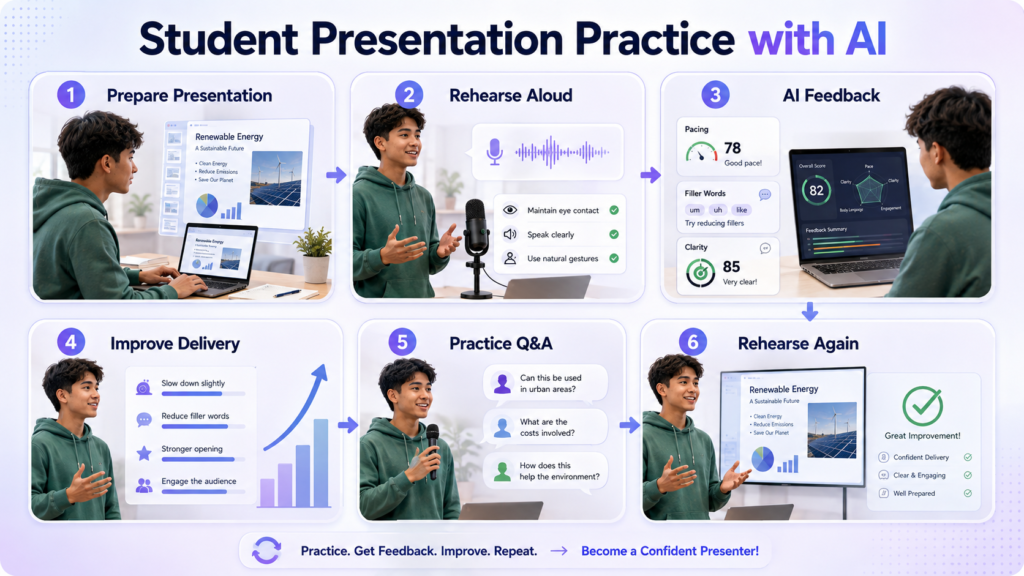
AI works best when it becomes part of a repeatable rehearsal loop rather than a one-time presentation check.
Step 1: Understand the Presentation Objective
Before opening an AI tool, answer three questions:
What should the audience learn?
Who is the audience?
What should they remember at the end?
If you cannot answer these questions, your presentation may need clearer direction before you worry about delivery.
Step 2: Prepare the Presentation and Speaking Notes
Create your slides and decide what you actually want to say.
Do not write a complete paragraph for every sentence you plan to speak. Instead, use short notes that remind you of the key points.
Step 3: Ask AI to Review the Structure
Give your presentation outline or relevant content to an AI assistant. Ask it to evaluate the structure from the perspective of your intended audience.
Step 4: Practice the Presentation Aloud
Now present from beginning to end.
Do not silently read your slides.
Speak as though an actual audience is sitting in front of you.
Record yourself if possible so you can compare your delivery later.
Step 5: Use an AI Speaking or Presentation Coach
If you want delivery feedback, use a tool designed for that purpose.
Microsoft PowerPoint Speaker Coach
PowerPoint Speaker Coach can provide feedback during rehearsal about delivery patterns such as:
Yoodli
A dedicated speaking coach such as Yoodli can also be used for presentation rehearsal and communication feedback.
Step 6: Review Pacing, Clarity, Filler Words, and Transitions
Do not try to fix everything simultaneously. Choose the two or three issues that matter most.
For example, you can make each rehearsal focus on a specific delivery problem:
Focus on speaking too quickly.
Focus on reducing unnecessary filler words.
Focus on improving weak transitions.
Step 7: Practice Without Reading the Slides
This is an important test. Look at the slide and explain the idea without reading the text word-for-word.
Step 8: Ask AI to Generate Audience Questions
Once you know the presentation itself, prepare for what may happen afterward. Ask AI to generate questions based on the actual content of your presentation.
Step 9: Practice Difficult Follow-Up Questions
Do not stop after answering the first question. Ask the AI to challenge your answer and continue the conversation as a real audience member might.
Step 10: Repeat the Presentation and Compare Improvements
Run the presentation again after making your changes. Compare the second rehearsal with your earlier attempt to see whether your delivery has actually improved.
Best AI Prompts for Practicing Presentations
1. Presentation Structure Review
2. Practice Speech Feedback
3. Simplifying Complex Explanations
4. Improving Transitions
5. Reducing Filler Words
6. Making Explanations More Concise
7. Audience-Question Generation
8. Difficult Follow-Up Questions
9. Mock Q&A Session
10. Final Presentation Rehearsal
What Presentation Skills Can AI Help Students Practice?
AI is most useful when you turn a vague goal like “become a better presenter” into specific skills.
Speaking Clearly
Your audience should understand the main point without having to decode complicated sentences.
AI can help identify:
• Overly technical wording
• Long sentences
• Unclear explanations
• Unnecessary jargon
For technical subjects, ask AI to simplify an explanation without removing the important technical meaning.
Pacing and Timing
A presentation can become difficult to follow when the speaker rushes through important information.
Practice with a timer and, where supported, use a presentation coach to identify pacing issues.
Also divide your total presentation time across major sections.
For example:
Introduction → 10%
Main content → 70%
Conclusion → 10%
Buffer → 10%
The exact split depends on the assignment, but leaving some flexibility can prevent the final section from being rushed.
Filler Words
Words such as “um,” “uh,” “like,” or repeated phrases can become noticeable when used excessively.
The goal is not to remove every natural pause.
Instead, learn to replace unnecessary fillers with a short pause.
A transcript from a practice recording can also help you notice patterns you do not hear while speaking.
Transitions
A good presentation should feel like one connected explanation rather than a collection of unrelated slides.
Simple transitions can help:
“Now that we understand the problem, let’s look at how we approached it.”
or:
“These results lead to the next question: what do they actually mean?”
AI can help identify where transitions are missing, but you should choose wording that sounds natural when you say it aloud.
Explaining Difficult Concepts
Students often know a technical concept but explain it at the wrong level for their audience.
Try this sequence:
Technical concept → simple explanation → example → audience question
If you can explain the idea at both a technical and understandable level, you are usually better prepared for questions.
Confidence and Delivery
AI can provide practice and measurable feedback, but confidence is not something an AI score can simply create.
Confidence usually grows when you:
• Know your material
• Practice aloud
• Repeat difficult sections
• Prepare for questions
• Learn how to recover after losing your place
If you make a mistake during rehearsal, continue rather than restarting immediately.
That teaches you how to recover—an important presentation skill.
Audience Questions
AI can create likely questions before the presentation and follow-up questions afterward.
Ask it to generate questions from the perspective of:
• A beginner
• A knowledgeable classmate
• A skeptical instructor
• A person unfamiliar with the topic
This produces a wider range of practice.
Concise Answers
A good Q&A answer should directly address the question before adding extra explanation.
Practice this pattern:
Answer → brief reason → example if needed
If the audience wants more detail, they can ask a follow-up.
How Students Can Use AI for Different Presentation Types
The same practice workflow can be adjusted according to the presentation.
Classroom Presentations
The main challenge is usually clarity and engagement.
Practice explaining the topic as though your classmates have limited background knowledge.
Use AI to generate simple audience questions and identify jargon that needs explanation.
Project Presentations
Project presentations often require students to explain both what they built and why they made certain decisions.
Practice questions about:
• Objective
• Method
• Design decisions
• Results
• Limitations
• Future improvements
AI can act as a simulated audience and challenge your project decisions.
Research Presentations
Research presentations require careful handling of evidence.
Practice explaining:
• Research question
• Methodology
• Data
• Findings
• Limitations
• Conclusions
Ask AI to generate questions that challenge your interpretation rather than simply asking for definitions.
Science Presentations
Science students should practice explaining technical concepts without losing scientific accuracy.
Useful practice areas include:
• Experimental methods
• Variables
• Results
• Mechanisms
• Sources of error
• Scientific limitations
Verify important scientific claims against reliable academic sources.
Engineering Presentations
Engineering students can practice defending:
• Design choices
• Calculations
• Components
• Materials
• Constraints
• Efficiency
• Failure conditions
• Alternative designs
Ask AI to behave like a technically informed audience member and challenge assumptions.
MBA/Business Presentations
Business presentations often involve recommendations and decisions.
Practice questions such as:
• Why is this recommendation better?
• What assumption does it depend on?
• What is the financial risk?
• What would you do if the market changed?
• What alternative strategy did you reject?
AI is useful here for simulating skeptical questions.
Seminars and Academic Talks
Seminars often involve a more knowledgeable audience.
Practice explaining the central argument quickly, then prepare for deeper questions about:
• Evidence
• Sources
• Methodology
• Interpretation
• Limitations
A mock Q&A session can be especially valuable before an academic seminar.
How to Use AI as a Mock Audience
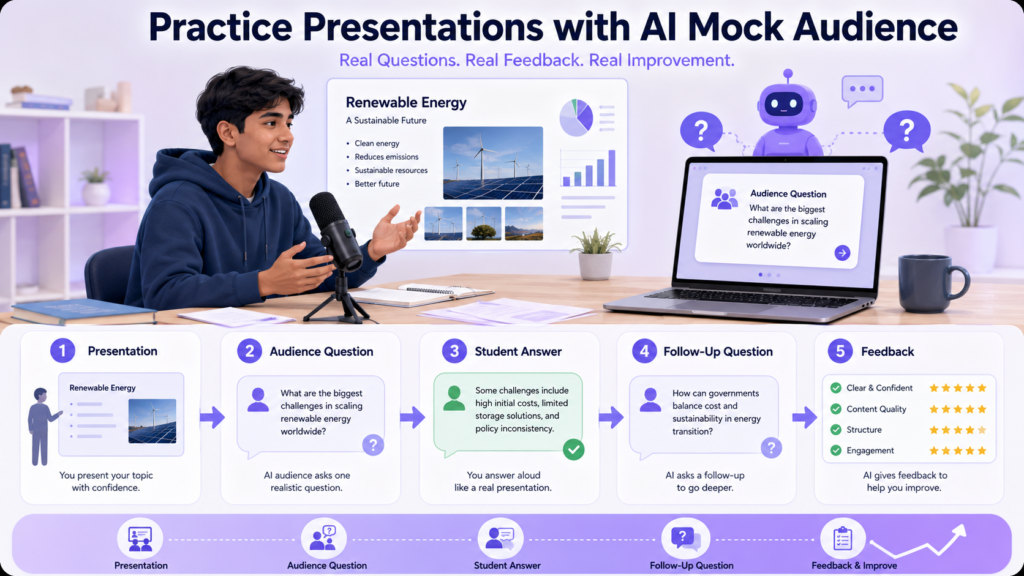
A mock audience should not simply tell you that your presentation is “good.”
It should create uncertainty similar to what you may experience in a real presentation.
Ask AI to Play Different Audience Roles
You can ask it to act as:
• A beginner who needs clarification
• A curious classmate
• A skeptical professor
• A technical expert
• A business stakeholder
Each role can produce different questions.
Make It Ask One Question at a Time
Do not ask AI to give you 30 questions and then answer them all at once.
Instead:
Question → Your answer → Follow-up → Your answer
This makes the session more interactive.
Ask It to Challenge Unclear Answers
Tell the AI:
“If my answer is vague, do not immediately correct me. Ask a follow-up question that forces me to explain my reasoning.”
That helps you discover whether you genuinely understand your material.
Complete Mock-Audience Prompt
“Act as the audience for my student presentation. Ask one question at a time based only on the presentation material I provide. Start with a realistic basic question, then gradually increase the difficulty. Ask follow-up questions when my answer is incomplete, vague, or unsupported. Include questions about my main argument, evidence, methodology, practical implications, and limitations. Do not give me answers before I respond. After the final question, give concise feedback on my clarity, reasoning, and ability to handle questions.”
For the most realistic practice, answer the questions out loud first, then enter your response into the AI.
What AI Cannot Fully Replace in Presentation Practice
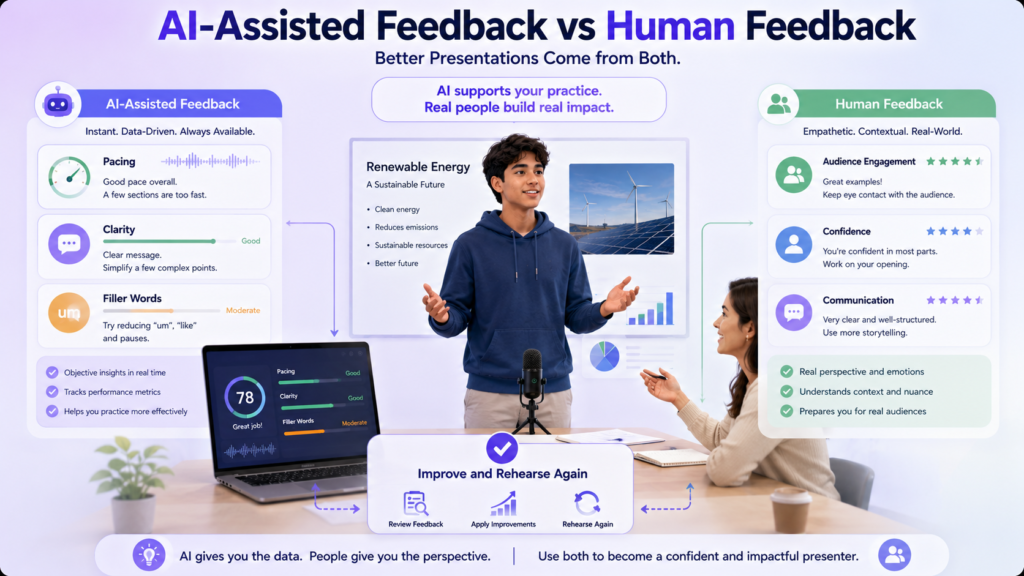
AI can make rehearsal more structured, but it cannot recreate every part of a real presentation.
Real Audience Reactions
An AI may generate a plausible audience question, but a real audience can react unexpectedly.
Someone may look confused. Another person may ask something you did not anticipate.
Physical Stage Presence
Some aspects of delivery are easier for a person to evaluate in real life, including how naturally you move, how you use the room, and how you respond to the physical presence of an audience.
Genuine Nervousness
You may feel completely comfortable speaking to an AI and still feel nervous in front of twenty classmates.
That is why some rehearsals should happen with real people.
Instructor Expectations
An AI may not know exactly what your professor considers important unless you provide that context.
Your syllabus, assignment instructions, grading rubric, and instructor feedback should remain important sources of guidance.
Audience Engagement
AI can estimate or discuss some aspects of presentation quality, but it cannot perfectly determine whether your real audience is interested, confused, bored, or convinced.
Combine AI With Human Practice
A strong routine is:
AI rehearsal → self-recording → friend/classmate practice → instructor feedback when available → final rehearsal
AI is one layer of preparation, not the entire process.
Is It Okay to Use AI to Practice a Student Presentation?
Yes. Using AI as a practice and feedback tool can be useful, provided your school or university allows it.
The important distinction is between using AI to prepare and using AI to perform the presentation for you.
Appropriate Uses of AI
Students can reasonably use AI to:
• Rehearse explanations
• Review presentation structure
• Generate audience questions
• Practice difficult follow-ups
• Improve transitions
• Identify repetitive wording
• Prepare for Q&A
• Review a practice transcript
These uses keep the student responsible for learning and delivering the material.
What Students Should Still Own
You should understand:
• The facts in your presentation
• Your research or project
• Your conclusions
• Your evidence
• Your recommendations
• The meaning of your slides
Do not memorize an AI-generated script without understanding it.
If your instructor asks a question that differs from your prepared wording, you need to be able to explain the idea yourself.
Follow Your Institution’s AI Policy
AI policies can differ between courses and institutions.
If your instructor requires disclosure of AI assistance, follow that requirement.
And unless explicitly permitted, do not use AI to generate answers during the actual presentation or assessment.
Student Privacy When Using AI Presentation Tools
Presentation practice may involve more personal or sensitive information than students initially realize.
Your slides could contain:
• Your name and student ID
• Personal information
• Research-participant information
• Unpublished research
• Internal school documents
• Project data
• Business information
• Recorded audio or video
Before uploading anything, ask:
Does this AI tool actually need this information for my practice?
If not, remove it.
Remove Personal Information
If your presentation contains names, email addresses, student IDs, or other identifying information, remove unnecessary details before uploading the material.
For example, a research presentation may not need the actual names of participants for an AI rehearsal session.
Be Careful With Unpublished Research
Graduate students and researchers may be working with information that should not be shared externally.
If your research is unpublished, confidential, or covered by institutional requirements, check the applicable rules before uploading it to an AI service.
Check Recording and Upload Settings
Some presentation-practice tools may process recordings, transcripts, slides, or other uploaded material.
Review the service’s current privacy information before using sensitive material.
Do not assume that an AI tool is completely private simply because it is being used for schoolwork.
Use the Minimum Necessary Information
For a speaking-practice session, you may only need:
Presentation title + outline + speaking notes
You may not need to upload an entire research folder containing unrelated files.
Common Mistakes Students Make When Practicing Presentations With AI
AI can make rehearsal easier, but it can also create bad habits if students use it passively.
Practicing Only Once
One AI-generated feedback report does not make you presentation-ready.
Practice → identify a problem → fix it → practice again.
Reading Every Word From the Slides
If your rehearsal consists of reading your slides aloud, AI cannot fix the underlying problem.
Use slides as visual support, not as a script.
Asking Generic Prompts
“Improve my presentation” is too broad.
Instead, ask for one specific type of feedback:
“Identify three places where my explanation is too technical for a first-year college audience.”
Specific prompts produce more useful practice.
Trusting AI Feedback Blindly
AI feedback is not automatically correct.
If a tool recommends changing something, consider whether that change actually improves your presentation and fits your assignment.
Ignoring Timing
A presentation can be well written and still fail because it runs over the allotted time.
Practice the complete presentation with a timer.
Ignoring Audience Questions
A presentation does not always end when the final slide appears.
If your class includes Q&A, prepare for it separately.
Overusing AI-Generated Scripts
A perfectly written script can actually make delivery less natural if you try to memorize every sentence.
Use AI to improve your ideas and practice—not to remove your own voice.
Failing to Practice Aloud
Reading a presentation silently is not the same as presenting it.
Your actual rehearsal should involve speaking.
Not Getting Human Feedback
AI is useful, but ask a friend, classmate, teacher, or family member to watch at least one practice session when possible.
A real person may notice something the software misses.
AI Presentation Practice Myths vs Reality
| Myth | Reality |
|---|---|
| AI can make a student confident without practice. | AI can provide feedback and structured rehearsal, but confidence develops through repeated practice. |
| AI can perfectly judge public speaking. | AI can analyze some measurable aspects of delivery, but human feedback remains valuable. |
| A perfect AI-generated script makes a good presentation. | Good presentations require understanding, natural delivery, and the ability to respond to the audience. |
| Practicing with AI once is enough. | Repeated rehearsal is more useful because each session can target a different weakness. |
| AI-generated feedback is always correct. | AI feedback can be useful, but students should apply judgment and compare it with instructor or human feedback. |
| Better slides automatically mean better presenting. | Clear slides can support delivery, but students still need to practice speaking and answering questions. |
Expert Tips for Better AI-Assisted Presentation Practice
1. Practice Aloud From the Beginning
Do not wait until the final day to speak through the presentation.
Your first rehearsal can reveal problems in wording, timing, and transitions.
2. Record at Least One Full Rehearsal
A recording lets you notice things that are difficult to recognize while speaking.
Watch for:
• Excessive filler words
• Long pauses
• Slide reading
• Rushed sections
• Unclear explanations
3. Rehearse Without Reading Your Slides
Look at a slide, understand its main point, and explain it naturally.
If you cannot do that, reconsider whether the slide is too complicated or whether you need to study the material further.
4. Ask AI for Targeted Feedback
Instead of asking for a general rating, focus on one problem.
For example:
“Focus only on whether my transitions between sections are clear.”
Targeted feedback is easier to act on.
5. Practice Difficult Questions
Prepare questions about your:
• Main argument
• Evidence
• Methodology
• Results
• Limitations
• Recommendations
These are often more valuable than practicing only easy factual questions.
6. Keep Answers Concise
For audience questions, start with a direct answer.
Then add the explanation or example if needed.
This helps prevent answers from becoming unnecessarily long.
7. Rehearse Your Timing
Know approximately how long each major section takes.
If you have a 10-minute presentation, discovering during the final rehearsal that your introduction takes four minutes is much better than discovering it in class.
8. Simplify Technical Explanations
If your audience is not specialized in your subject, avoid unnecessary jargon.
Practice explaining a difficult concept in two versions:
Technical explanation → audience-friendly explanation
9. Combine AI and Human Feedback
AI can provide repeatable feedback.
A human can provide context.
Use both when possible.
10. Practice Recovery, Not Just Perfection
Real presentations rarely go perfectly.
Practice what you will do if:
• You forget a sentence
• A slide does not advance
• Someone interrupts with a question
• You lose your place
• You realize you made a minor mistake
Being able to recover calmly is a valuable presentation skill.
Conclusion
The Best AI Tools for Students to Practice Presentations are not necessarily the tools that create the most impressive slides. The most useful tool depends on the specific part of presentation practice you need to improve.
A dedicated speaking coach can help with delivery. PowerPoint Speaker Coach can be practical for rehearsing an existing PowerPoint deck. Conversational AI tools such as ChatGPT, Gemini, and Claude can help with structure, explanations, audience questions, and mock Q&A. Presentation platforms such as Canva can help improve the visual side of your deck.
The most effective routine is simple:
Prepare → Rehearse → Get Feedback → Practice Q&A → Improve → Rehearse Again
Use AI to make that cycle easier to repeat, but keep your own understanding at the center.
A strong presentation does not come from having the perfect AI-generated script. It comes from knowing your material well enough to explain it clearly, stay within your time, respond to questions, and recover when something unexpected happens.
Continue Learning
Best AI Tools for Students to Create Charts From Data
Useful if your presentation includes survey results, research findings, or other data visualizations.
Best AI Tools for Students to Analyze Survey Data
A natural next step for students presenting survey findings who need to understand their data before presenting it.
Best AI Tools for Creating Lab Reports for Students
Useful for students preparing presentations based on laboratory experiments and reports.
Best AI Tools for Students to Prepare Viva Questions
Helpful when a presentation is followed by a viva, oral examination, or project defense.
Frequently Asked Questions About AI Tools for Presentation Practice
What is the best AI tool for students to practice presentations?
There is no universal winner. Yoodli and PowerPoint Speaker Coach are strong choices for presentation rehearsal and delivery feedback, while ChatGPT, Gemini, and Claude can be useful for content review and Q&A practice.
Can AI help students practice speaking?
Yes. Some AI tools provide dedicated speaking practice and feedback, while conversational AI can help students rehearse explanations and questions. Speaking aloud during the practice session is essential.
Can AI give feedback on a presentation?
Yes, depending on the tool. Some services can provide feedback on areas such as pacing, filler words, or slide reading, while conversational AI is often more useful for reviewing content and structure.
Can AI help reduce filler words?
Some presentation and speaking tools can identify filler words during or after rehearsal. The goal should be to become aware of repeated fillers and replace unnecessary ones with natural pauses.
Can AI help students practice presentation Q&A?
Yes. Students can give an AI tool their presentation material and ask it to generate audience questions, difficult follow-ups, and mock Q&A sessions.
Can ChatGPT help practice a presentation?
Yes. ChatGPT can help review presentation structure, simplify explanations, generate audience questions, and simulate a conversational Q&A session. It is more useful as a flexible practice partner than as a dedicated speech-analysis tool.
Can AI help students improve presentation confidence?
AI can support confidence by providing repeated practice opportunities and helping students prepare for questions. However, confidence also comes from actual rehearsal, familiarity with the material, and experience speaking to people.
Can AI analyze presentation timing?
Some presentation tools can provide timing or pacing feedback. Students can also use a simple timer while rehearsing the complete presentation.
Is AI presentation practice better than practicing alone?
AI can make solo practice more interactive, especially for generating questions and feedback. However, it does not replace practicing in front of real people. Combining AI rehearsal with human feedback is usually more useful.
Should students combine AI practice with human feedback?
Yes. AI can provide repeatable practice and structured feedback, while teachers, classmates, or other real listeners can provide context about clarity, engagement, and audience reaction.