Quick Answer
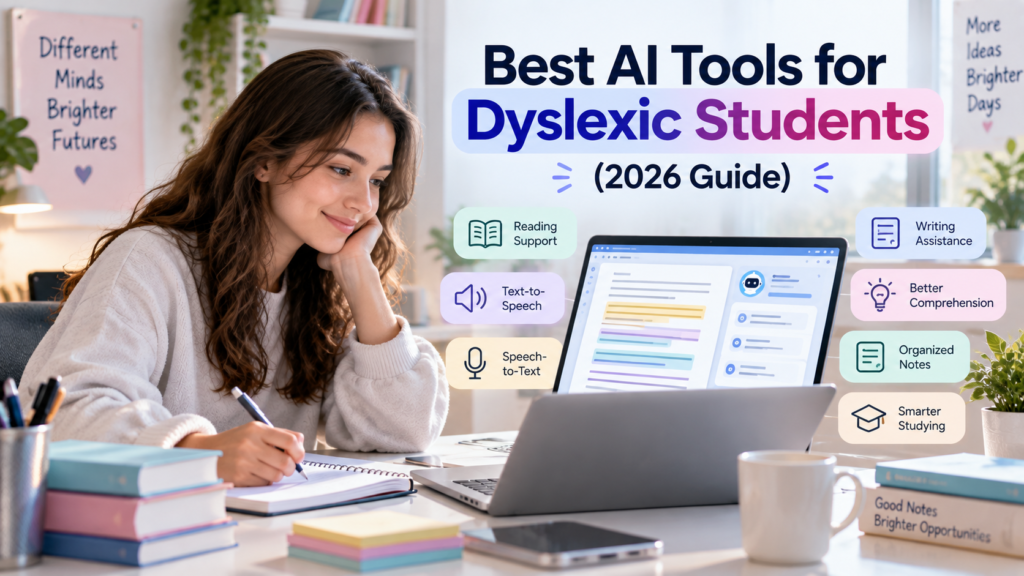
The best AI tools for dyslexic students are not necessarily the tools with the largest feature lists. The right choice depends on the academic task creating the most friction.
For reading, a dedicated accessibility tool such as Microsoft Immersive Reader or a text-to-speech service such as Speechify can be useful. For understanding difficult material, ChatGPT, Microsoft Copilot, and Gemini can explain concepts, summarize information, and break large topics into smaller steps. NotebookLM is particularly useful when a student wants to work from a defined collection of notes, readings, or other sources. Grammarly can support drafting and revision, while Otter can help turn permitted lectures or discussions into searchable transcripts and summaries.
A practical starting point is:
Different learning challenges call for different tools. Use this quick guide to find a practical option for the task you are trying to complete.
Reading text aloud
Understanding difficult material
Studying from your own sources
Writing and editing
Speech-to-text and lecture notes
General academic support
Learning-first AI practice
Tip: Choose the tool based on the learning task, not simply on how many features it offers. The best option is the one that makes the specific study activity easier and more accessible.
There is no universal “best” tool for every student. Some students may prefer one accessibility feature built into software they already use, while others may benefit from combining a read-aloud tool with an AI study assistant.
The goal is not to make AI do schoolwork. It is to reduce unnecessary friction so the student can spend more attention on understanding, thinking, practicing, and producing their own work.
Introduction
Students with dyslexia do not all experience academic work in the same way. One student may find long reading assignments particularly demanding, while another may prefer dictation when getting ideas onto a page. Someone else may benefit most from having notes reorganized or difficult terminology explained in smaller steps.
That makes tool selection more useful when it starts with the task, not the label.
AI and accessibility technologies can support several parts of an academic workflow. Text-to-speech can provide an alternative way to access written material. Speech-to-text can make it easier to capture ideas verbally. Generative AI can summarize, explain, organize, question, or transform information into study materials. Writing assistants can provide feedback while a student drafts and revises.
These technologies should be viewed as academic and accessibility support, not as treatment for dyslexia. They do not diagnose, cure, or medically manage dyslexia.
The strongest workflow also keeps the student involved. If an AI tool summarizes a chapter, the student should still compare the summary with the original material when accuracy matters. If an AI assistant helps organize an essay, the student should remain responsible for the ideas, evidence, and final submission.
That learning-first approach is particularly important because AI systems can make mistakes. A tool that makes academic work easier to access is useful; a tool that quietly replaces the student’s thinking can create a different problem.
What Can AI Tools Do for Dyslexic Students?
AI and accessibility tools can support a wide range of academic tasks.
Reading support
Text-to-speech can turn written material into spoken audio. This can be useful when a student wants to listen to a PDF, webpage, document, or other supported text rather than relying only on silent reading.
Microsoft’s Immersive Reader, for example, provides read-aloud functionality alongside options such as line focus, spacing controls, syllabification, and other reading-oriented tools. Microsoft specifically describes Immersive Reader as a tool that supports learners with dyslexia and other reading needs.
Comprehension support
Generative AI can help explain unfamiliar terminology, summarize a section, compare concepts, or break a difficult passage into smaller pieces.
The important distinction is that an AI explanation should act as a bridge to understanding, not a replacement for the original textbook, paper, lecture, or instructor explanation.
Writing support
AI can help students brainstorm, create an outline, identify unclear sentences, check grammar, or suggest ways to improve organization. Grammarly, for example, provides writing guidance and AI-supported brainstorming and outlining features for students.
Notes and document support
Some AI tools can work with uploaded documents or notes to produce summaries, questions, explanations, or other study materials. Gemini supports file uploads and analysis, while NotebookLM is designed around working with source material inside a notebook.
Speech-to-text
Speech-to-text turns spoken words into written text. It can be useful for capturing an idea before writing, dictating a rough draft, or taking notes where recording and transcription are permitted.
Organization
AI can help break a large assignment into smaller tasks, create a study sequence, organize research topics, or suggest a weekly plan. It cannot guarantee that a student will meet deadlines or stay organized, but it can reduce the amount of manual planning required.
What AI does not do
AI accessibility support is different from medical intervention.
AI tools do not diagnose dyslexia, treat dyslexia, or cure dyslexia. They are technologies that can change how a student interacts with information and academic tasks.
How We Selected These AI Tools
The tools in this guide were selected based on their ability to solve different academic problems, rather than simply their popularity.
The evaluation considered:
• usefulness for real student tasks
• reading and readability support
• writing and revision support
• comprehension
• note and document handling
• studying and practice
• organization
• accessibility features
• platform availability
• free access or free options where available
• privacy considerations
• important limitations
• whether the tool’s current capabilities can be verified
The list also deliberately separates general-purpose AI assistants from dedicated accessibility technologies.
That distinction matters. Microsoft Immersive Reader, for example, is fundamentally a reading-accessibility tool. ChatGPT and Gemini are general-purpose AI systems that can be configured for learning tasks. Speechify is primarily a text-to-speech and voice-focused service. Grammarly concentrates heavily on writing support. Otter is particularly relevant to transcription and lecture-note workflows.
No personal testing claim is made here. Tool capabilities and plans can change, so students should check the provider’s current documentation before relying on a particular feature.
Best AI Tools for Dyslexic Students
1. Microsoft Copilot
Best for: Learning support inside the Microsoft ecosystem
Microsoft Copilot is especially interesting for students who already work heavily in Microsoft 365. Microsoft says Copilot can summarize and analyze files and work across applications such as Word, PowerPoint, Outlook, Teams, and OneNote. Its education offering also includes the Study and Learn Agent, a learning-focused experience designed to guide students through concepts, practice, and understanding rather than simply returning finished answers.
For students who find it easier to work through information in smaller stages, Study and Learn can create activities such as flashcards, quizzes, matching exercises, and fill-in-the-blank practice from uploaded material.
Key strengths
- Works within the Microsoft ecosystem
- Can work with student materials in supported environments
- Study and Learn is explicitly learning-focused
- Useful for explanations, summaries, and practice
- Integrates with Microsoft productivity applications
Important limitation
Availability depends on the student’s Microsoft account, institution, age, license, and administrator settings. Microsoft currently states that Study and Learn is available to eligible education users aged 13 and older with Microsoft 365 Education licenses, while institutional settings can affect access.
Best academic use case
Upload or work from class material, ask for a plain-language explanation, then use Study and Learn to test your understanding.
2. ChatGPT
Best for: Explaining difficult concepts and building interactive study support
ChatGPT can be useful when the main challenge is understanding rather than simply finding information.
Its current Study Mode is designed to guide learning through questions, explanations, step-by-step reasoning, and checks for understanding. OpenAI says Study Mode can work with class notes, slides, readings, and uploaded files when those capabilities are available. It can also create practice questions and flashcard-style review.
For a student who encounters a dense paragraph in a textbook, a useful workflow is to isolate the difficult section and ask ChatGPT to explain it without removing important terminology or meaning.
Key strengths
- Flexible explanations
- Study Mode supports guided learning
- Can work with uploaded material when available
- Useful for questions, summaries, outlines, and practice
- Voice and dictation options may support hands-free interaction where available
Important limitation
ChatGPT can still make errors. A clear explanation is not automatically an accurate explanation. Important academic claims should be checked against the original source, course material, or another reliable reference.
Best academic use case
Turn confusing material into a sequence of smaller explanations and questions, then explain the concept back in your own words.
3. Google Gemini
Best for: Guided learning, document analysis, and research-oriented workflows
Gemini offers several features that can fit an accessibility-oriented study workflow. Google currently documents Guided Learning, which can provide tutoring-style help and can work with uploaded files. Gemini can also analyze supported documents, spreadsheets, images, videos, and other files.
Its learning tools can generate practice questions and provide hints and feedback. Google also documents access to OpenStax resources in Gemini’s learning experience in the United States, although some learning features have age and account restrictions.
Key strengths
- Guided Learning for structured study
- File upload and analysis
- Useful for explanations and question generation
- Strong fit for students already using Google services
Important limitation
Feature availability varies by account, age, device, country, and rollout status. Some advanced features have additional eligibility requirements. For example, Google’s current Deep Research documentation states that Deep Research requires users to be 18 or older.
Best academic use case
Upload a difficult reading or set of notes and ask for a structured explanation, key concepts, and practice questions.
4. NotebookLM
Best for: Studying from a controlled collection of source material
NotebookLM is useful when a student wants AI to stay closely connected to a defined set of sources rather than asking a general chatbot about a topic.
Students can organize source material into notebooks and use AI to ask questions, generate summaries, and create study-oriented material from those sources. Google’s current NotebookLM ecosystem includes features such as Audio Overviews, flashcards, quizzes, reports, and other source-based study functions, with limits varying by plan.
This makes NotebookLM particularly useful for a course where the student has a syllabus, lecture notes, readings, and other class materials.
Key strengths
- Source-focused workflow
- Useful for notes and readings
- Can generate study material from provided sources
- Helpful for reviewing a defined academic topic
Important limitation
NotebookLM should not be treated as a guarantee that every generated summary is correct. Students should still compare important claims with the original source.
Best academic use case
Build one notebook for a course or project, add permitted source material, then use it to generate summaries and questions for review.
5. Microsoft Immersive Reader
Best for: Reading text aloud and making digital text easier to work through
Immersive Reader is different from the other tools on this list because it is primarily an accessibility and reading-support technology, not a general-purpose chatbot.
Microsoft describes it as a free tool designed to improve reading for people regardless of age or ability. Its features include read-aloud, adjustable spacing, line focus, syllabification, picture dictionary functions, and other reading preferences. Microsoft also states that Immersive Reader is designed to support students with dyslexia and dysgraphia in OneNote.
It can be particularly useful when the problem is the mechanics of interacting with a large amount of digital text.
Key strengths
- Free
- Dedicated reading support
- Read-aloud functionality
- Line focus and spacing controls
- Available across multiple Microsoft products and supported environments
Important limitation
It is not a general AI tutor. It will not replace the explanation, questioning, research, or study features offered by a generative AI assistant.
Best academic use case
Listen to a difficult reading while following the text visually, then use a separate AI study tool to explain or quiz you on what you read.
6. Speechify
Best for: Text-to-speech and listening to academic material
Speechify focuses strongly on converting written content into spoken audio. Its current pricing page lists a free tier with text-to-speech features and a Premium tier with additional voices, higher playback speeds, scanning, summaries, integrations, and voice typing.
Speechify also publishes specific guidance around using its technology with students with dyslexia, including synchronized highlighting and adjustable playback. Those claims describe how the company positions its product; students should still decide whether the actual reading experience works well for them.
Key strengths
- Strong text-to-speech focus
- Useful for PDFs, webpages, and other supported text
- Adjustable playback
- Synchronized reading support
- Free option available
Important limitation
The free tier has more limited capabilities than Premium, and a dedicated TTS service may be unnecessary if the student’s device or existing software already provides sufficient read-aloud functionality.
Best academic use case
Convert a long reading assignment into audio and listen while following along with the text.
7. Grammarly
Best for: Writing clarity, revision, and getting started with drafts
Grammarly is most useful when writing itself creates friction.
Its student offering includes writing assistance and an AI Chat experience for brainstorming and editing. Grammarly’s education materials also describe writing suggestions, explanations, brainstorming, outlining, and tools intended to help students improve their own writing.
For a student who has good ideas but struggles to organize them into clear written sentences, this can be a practical support layer.
Key strengths
- Grammar and spelling support
- Clarity and revision guidance
- Brainstorming and outlining support
- Works across many apps and websites
- Free student sign-up is available, with additional paid features
Important limitation
Writing assistance can easily become over-editing. If a student accepts every suggestion automatically, the final writing may stop reflecting their natural voice or intended meaning.
Best academic use case
Draft your own ideas first, then use Grammarly to identify clarity, grammar, and organization issues.
8. Otter.ai
Best for: Speech-to-text, lecture notes, transcripts, and review
Otter is particularly relevant when spoken information is easier to capture than handwritten notes.
Its education offering includes real-time captions, lecture transcription, automated notes, searchable transcripts, summaries, and slide capture for supported virtual sessions. Otter says students can use stored transcripts and keyword search to review class material later.
This can be useful for students who want to concentrate on listening during a permitted lecture rather than trying to write down everything.
Key strengths
- Real-time transcription
- Searchable lecture notes
- Automated summaries
- Captions
- Useful for online and in-person classes where permitted
Important limitation
Recording or transcribing a class may require instructor permission or be restricted by school policy or local law. A student should confirm the rules before recording.
Best academic use case
Use permitted transcription during a lecture, then review the transcript and summary afterward to identify concepts that need further study.
Best AI Tools for Dyslexic Students Compared
AI Tools Comparison Table
Compare these tools by the type of support they provide across reading, writing, studying, research, and lecture review.
| AI Tool | Best For |
Reading Support |
Writing Support |
Study/ Notes |
Research | Free Option | Best Use |
|---|---|---|---|---|---|---|---|
| Microsoft Copilot | Learning + Microsoft 365 | Medium | High | High | High | Depends on account | Study inside Microsoft ecosystem |
| ChatGPT | Explanations + study | Medium | High | High | High | Yes, plan-dependent features | Understand and practice |
| Google Gemini | Guided learning + files | Medium | High | High | High | Availability varies | Learn from files and topics |
| NotebookLM | Source-based study | Medium | Medium | High | High | Standard access available | Study from course sources |
| Immersive Reader | Reading accessibility | High | Low | Low | Low | Yes | Read digital text aloud |
| Speechify | Text-to-speech | High | Low | Medium | Low | Yes | Listen to readings |
| Grammarly | Writing and editing | Low | High | Medium | Low | Yes | Revise your own writing |
| Otter.ai | Transcription | Medium | Low | High | Medium | Free option available | Capture and review lectures |
Mobile tip: Swipe horizontally to view all comparison columns.
How to read this table
“High,” “Medium,” and “Low” describe the tool’s relative usefulness for that academic task—not a guarantee of accuracy or accessibility for every student. The best choice depends on the specific learning need and the features available on the student’s account or device.
The table is intentionally broad. A tool’s usefulness can change depending on the student’s device, school account, assignment rules, and preferred way of working.
Which AI Tool Is Best for Different Student Needs?
Best for reading text aloud
Microsoft Immersive Reader is a strong starting point when the student already uses supported Microsoft applications. Speechify is another strong option when dedicated text-to-speech features are the priority.
Immersive Reader offers more than simply reading words aloud: Microsoft documents line focus, spacing, syllabification, and other reading controls.
Best for understanding difficult material
ChatGPT, Microsoft Copilot, and Google Gemini are strong general-purpose choices because they can explain concepts, answer questions, and break large topics into smaller parts.
The best choice is often the one that works most naturally with the student’s existing study materials and account.
Best for summarizing notes
NotebookLM is particularly useful when the student wants summaries and questions based on a defined set of sources. Copilot, ChatGPT, and Gemini can also help summarize uploaded material where file functionality is available.
Best for writing support
Grammarly is a natural choice for students who want writing and revision assistance. A general AI assistant can complement it by helping brainstorm or organize ideas.
Best for speech-to-text
Otter.ai is a strong option for transcription-heavy academic workflows. Built-in device or Microsoft dictation can also be sufficient for simple voice-to-text drafting.
Best for research organization
NotebookLM is useful for source-centered research organization, while Gemini and ChatGPT can help with broader research questions. Important research claims should still be verified against primary or reliable sources.
Best free option
There is no single winner because “free” and “best” depend on the task.
Immersive Reader stands out for free reading accessibility, while ChatGPT, Gemini, NotebookLM, Grammarly, Speechify, and Otter each provide some form of free or standard access with varying limits and features. Microsoft currently describes Immersive Reader as free, and Speechify lists a free tier.
Best overall
For broad academic support, ChatGPT or Microsoft Copilot can be strong starting points.
For reading accessibility, start with Immersive Reader or Speechify.
For source-based study, consider NotebookLM.
For writing, consider Grammarly.
The “best” choice is therefore a task-based decision, not a universal ranking.
How Students With Dyslexia Can Use AI for Studying
Turn Difficult Text Into a Clear Explanation
Instead of asking an AI tool to “summarize this,” identify the exact part that is difficult.
Ask it to explain the passage in plain language, define unfamiliar terminology, and preserve important academic meaning.
Then compare the explanation with the original.
This creates a useful sequence:
Difficult passage → Explanation → Check original → Write your own understanding
Listen to Long Reading Material
Use text-to-speech when listening is more useful for the particular reading task.
Immersive Reader and Speechify can provide spoken versions of supported text. Microsoft documents read-aloud and reading preferences in Immersive Reader, while Speechify focuses specifically on text-to-speech.
Listening does not mean skipping the material. A student can follow the text visually, pause when something is unclear, and return to important sections.
Turn Notes Into Study Materials
Give an AI tool your notes and ask it to produce:
• key concepts
• definitions
• likely review questions
• flashcards
• a short study outline
Then use the generated material to test yourself.
Create Study Questions
Instead of asking AI to give you every answer, ask it to quiz you.
For example:
“Ask me one question at a time about these notes. Wait for my answer before giving feedback. If I am wrong, give me a hint first.”
This keeps the learning process active.
Organize Research
AI can help group notes into themes, identify repeated ideas, and create an outline for a research project.
But it should not become the source of truth. Verify citations, quotations, statistics, and factual claims against the original research.
Support Writing and Editing
A useful writing workflow is:
Idea → Your rough draft → AI feedback → Your revision → Final review
That is different from:
Assignment → AI writes everything → Submit
The first approach uses AI as a support tool while keeping authorship and thinking with the student.
Prepare for Exams
Give a study assistant permitted notes or material and ask it to create:
• concept questions
• practice quizzes
• short-answer questions
• “explain why” questions
• mixed review sessions
Microsoft’s Study and Learn Agent, for example, includes flashcards, quizzes, matching, and fill-in-the-blank activities.
Break a Large Academic Task Into Smaller Steps
For a major project, ask AI to convert the assignment instructions into a checklist.
For example:
- Understand the question
- Identify required sources
- Create a research list
- Read and annotate sources
- Build an outline
- Draft
- Revise
- Check citations
- Compare the final work with the assignment requirements
The student remains responsible for deciding whether each step is appropriate.
How to Use AI to Make Difficult Academic Text Easier to Understand
A simple workflow is:
Academic Text → Identify the difficult section → Ask for a clear explanation → Check unfamiliar terms → Compare with the original → Write your own understanding → Review
The most important step is the comparison with the original.
AI can simplify language so aggressively that important qualifications disappear. For academic material, the goal should be clearer language without losing meaning.
Copyable prompt
“Explain the academic passage below in clear, student-friendly language. Keep the original meaning, important qualifications, technical terms, and cause-and-effect relationships. First identify the main idea, then explain each important point in simple language. Define difficult terms briefly. Do not add facts that are not supported by the passage. At the end, give me 3 questions I can answer to check whether I actually understand it.”
This prompt is useful because it asks for explanation without turning the original material into an oversimplified summary.
Best AI Prompts for Students With Dyslexia
Tip: Replace the opening phrase such as “this passage,” “these notes,” or “this academic topic” with your own material when using a prompt.
How AI Can Help With Reading and Comprehension
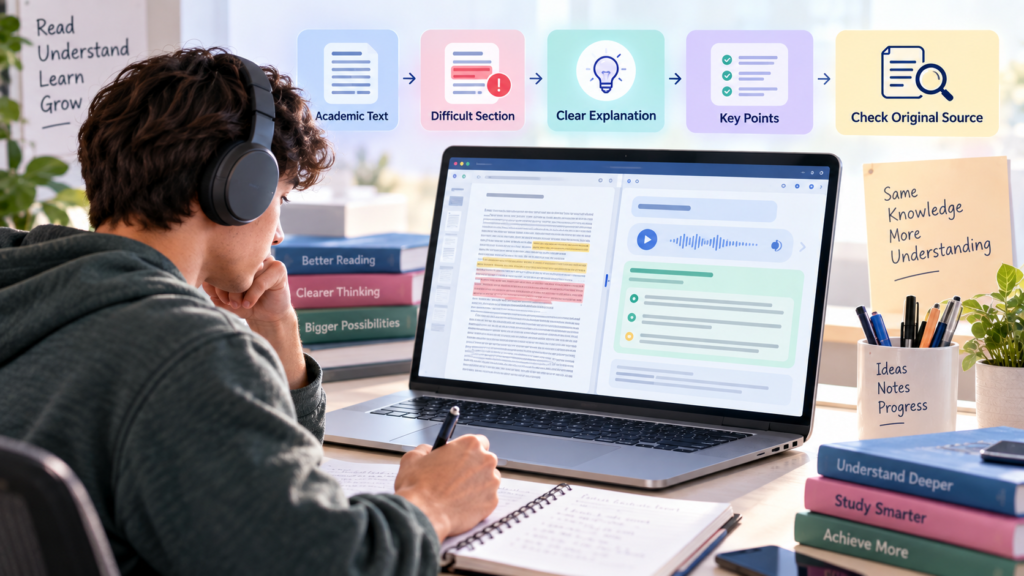
AI can support reading comprehension in several ways:
• summarize a section
• explain difficult terminology
• extract key points
• generate questions
• compare two concepts
• break a long passage into smaller sections
• provide an alternative explanation
• read supported text aloud through accessibility tools
• identify relationships between ideas
The important word is support.
AI summaries can contain errors, omit important qualifications, or misunderstand the source. Google explicitly warns that Gemini can make mistakes and recommends double-checking responses.
For important academic material, use a verification loop:
AI explanation → Original textbook/paper → Course materials → Your own understanding
If the AI explanation conflicts with the source, the original source should take priority unless your instructor provides a different interpretation.
AI for Writing and Editing
Writing assistance can be especially useful at three stages.
Before writing
AI can help brainstorm possible directions, questions, or an outline.
During writing
Students can use dictation or speech-to-text to capture ideas before turning them into polished prose.
After writing
AI writing assistants can identify grammar problems, unclear sentences, repetitive wording, and organization issues.
Grammarly’s current education materials emphasize brainstorming, outlining, writing suggestions, and explanations intended to strengthen student writing rather than simply replace it.
A good rule is:
Use AI to make your thinking easier to express—not to replace the thinking.
Before using any AI writing feature, check your school’s or professor’s policy. Some assignments permit grammar or accessibility assistance but restrict generative rewriting or AI-authored text.
AI for Notes, Documents, and Research
AI can reduce the manual work involved in processing academic information.
For example, a student can use an appropriate tool to:
• summarize lecture notes
• identify key concepts
• extract definitions
• generate practice questions
• compare two readings
• identify missing areas in notes
• organize research themes
• create a study outline
NotebookLM is particularly useful for source-centered workflows, while Gemini can analyze supported uploaded files and Copilot, ChatGPT, and other assistants may provide document-based features depending on the account and plan.
Keep the original source nearby
When AI works from a document, do not throw away the original.
Keep the textbook, article, lecture material, research paper, or assignment instructions available so you can verify:
• quotations
• definitions
• numbers
• dates
• technical claims
• citations
• conclusions
AI is most useful here as a navigation and processing layer, not as the final authority.
AI for Speech-to-Text and Text-to-Speech
These two technologies solve different problems.
Text-to-Speech
Text → spoken audio
Useful for:
• listening to supported reading material
• reviewing written content through audio
• following along with text while it is read aloud
• accessing long digital documents in another format
Immersive Reader and Speechify are examples of tools that can support this type of workflow.
Speech-to-Text
Spoken words → written text
Useful for:
• dictating ideas
• creating a rough draft verbally
• capturing notes
• transcribing permitted lectures
• recording thoughts before organizing them into written form
Otter focuses heavily on transcription and lecture notes, while other devices and productivity applications also provide built-in dictation.
These features are not equally useful for everyone. The best option depends on whether listening, speaking, typing, or reading feels most efficient for a particular task.
AI for Academic Organization
AI can help turn a vague academic task into a sequence of concrete actions.
For example, instead of:
“Work on my research paper.”
A student can ask for:
• research question
• source collection
• reading schedule
• evidence organization
• outline
• first draft
• revision
• citation check
• final requirements check
AI can also help build a weekly study plan around deadlines and available time.
But organization still requires human judgment. AI does not automatically know which assignment matters most, whether a professor changed a deadline, or whether a particular task has special requirements.
Use AI for planning assistance, then confirm the actual deadlines and requirements yourself.
A Simple AI-Assisted Study Workflow for Dyslexic Students
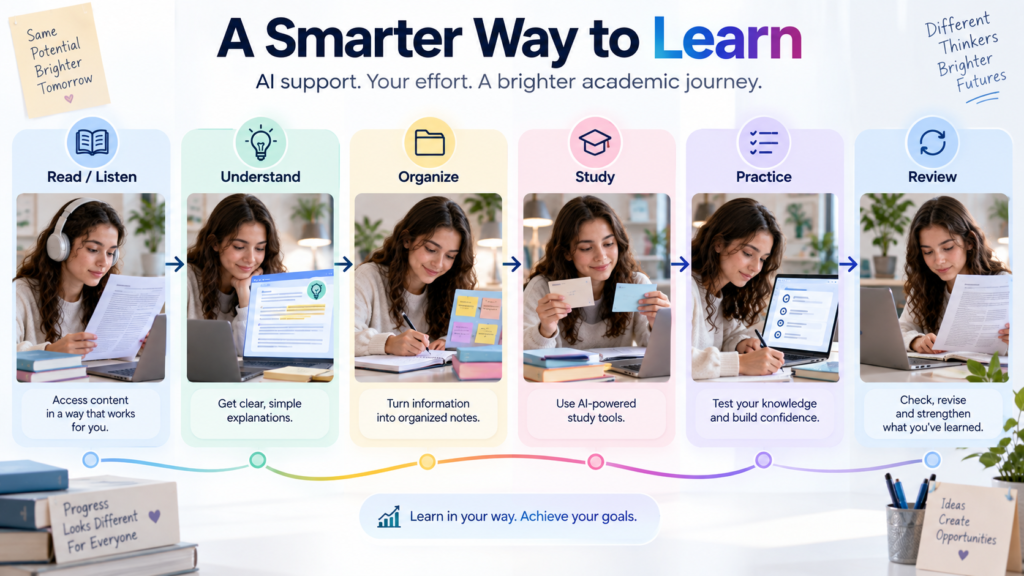
A practical workflow is:
Read/Listen → Understand → Organize → Study → Practice → Review
1. Read/Listen
Use the reading format that works best for the particular material.
2. Understand
Ask for explanations of genuinely difficult sections.
3. Organize
Turn notes into headings, concepts, definitions, and relationships.
4. Study
Create questions, flashcards, or short review activities.
5. Practice
Answer questions without looking at the generated answer first.
6. Review
Return to the original material and check what you misunderstood.
This combines accessibility technology with AI instead of asking one tool to do everything.
What AI Cannot Do for Dyslexic Students
AI cannot:
• diagnose dyslexia
• treat dyslexia
• cure dyslexia
• guarantee improved reading or writing performance
• guarantee academic success
• replace teachers
• replace academic advisors
• replace professional support
• perfectly understand an individual student’s learning needs
• guarantee that generated information is correct
AI can make an academic task easier to approach, but it cannot determine the best learning strategy for every student.
Academic Integrity and Responsible AI Use
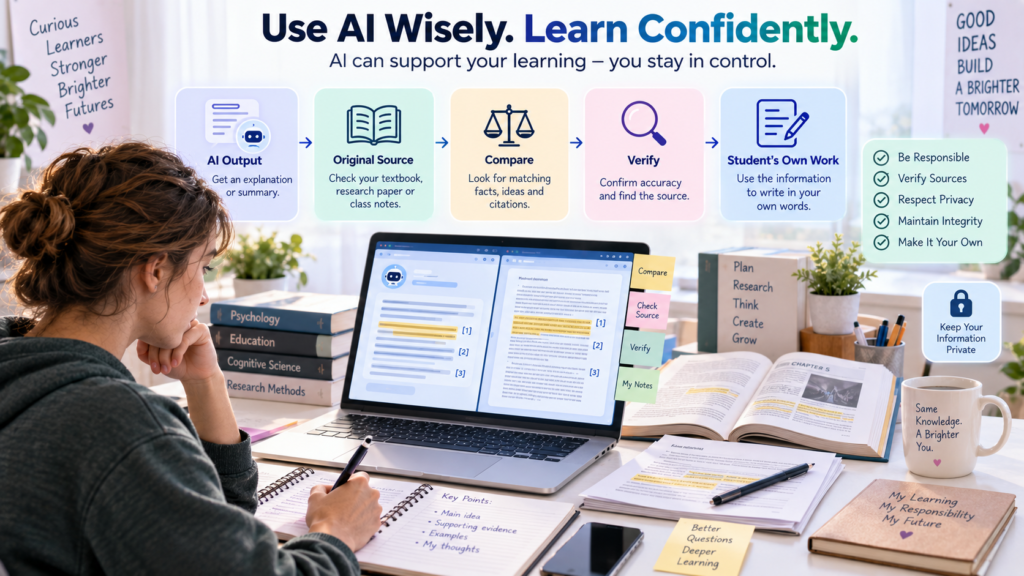
Every student should check their school’s or university’s AI policy before using generative AI for an assignment.
Rules can differ between courses and assignments.
Responsible use may include:
• using AI for permitted brainstorming
• using accessibility features when allowed
• checking AI-generated information
• keeping your own reasoning involved
• writing your own final work when required
• disclosing AI assistance when a course requires it
• following assignment-specific rules
• asking whether transcription or recording is allowed
• keeping track of what AI contributed
Accessibility support and prohibited assignment assistance are not always the same thing.
For example, a school may permit text-to-speech or dictation while restricting generative rewriting. The safest approach is to check the actual policy instead of assuming that because a feature is available, it is automatically permitted.
Student Privacy When Using AI Tools
Academic information can contain more sensitive material than students realize.
Before uploading anything, consider whether it includes:
• personal information
• student identification information
• private correspondence
• unpublished research
• confidential class material
• classmates’ information
• instructor information
• copyrighted course materials
• recorded lectures
Use the minimum information necessary.
Also review the current privacy and data controls for the specific service you plan to use. Do not assume that all AI services handle uploaded information in exactly the same way.
For school-managed accounts, institutional policies may provide additional controls. Microsoft, for example, describes enterprise-grade privacy and security protections around its education offerings, while Grammarly describes institutional security controls for Grammarly for Education.
Privacy decisions should therefore be made at the tool + account + document level.
Common Mistakes Students Make When Using AI
Trusting AI blindly
A fluent answer can still be wrong.
Using AI instead of learning
If AI answers every question immediately, the student loses opportunities to practice retrieval and reasoning.
Asking AI to rewrite everything
Full rewrites can change meaning and reduce the student’s ownership of the writing.
Using too many tools
A complicated setup can create more work than it removes.
Creating complicated workflows
The best workflow is often the smallest one that solves the actual problem.
Skipping source verification
Always verify important academic information.
Uploading unnecessary information
Only provide the material the tool actually needs.
Ignoring school policies
A tool’s availability does not mean every use is permitted.
Assuming every accessibility feature works everywhere
Features can vary across apps, devices, accounts, languages, and plans.
AI Myths vs Reality for Dyslexic Students
| Myth | Reality |
|---|---|
| AI can fix dyslexia. | AI tools can provide academic or accessibility support, but they do not cure dyslexia. |
| AI automatically makes reading easier. | Read-aloud and other accessibility features can help, but usefulness varies by student and task. |
| AI explanations are always correct. | AI can make mistakes and should be checked against important sources. |
| More AI tools are always better. | A small, reliable workflow is often easier to maintain. |
| AI can replace teachers or learning support. | AI can supplement human support but cannot replace individualized guidance. |
| Text-to-speech solves every reading challenge. | It provides another way to access text, but it does not solve every possible difficulty. |
| AI should do most academic work. | AI is most useful when it supports the student’s own understanding and participation. |
Mobile tip: Swipe horizontally to view the full table.
Expert Tips for Using AI Effectively
- Start with one friction point. Identify whether reading, writing, notes, comprehension, or organization is the actual problem.
- Choose the tool for the task. Do not force a chatbot to perform a job that a dedicated accessibility tool handles better.
- Use accessibility features first when they solve the problem. Built-in reading and dictation tools can be simpler than adding another AI service.
- Break long material into smaller sections. Smaller chunks can make explanations easier to check.
- Ask for explanations, not just summaries. A summary tells you what something says; an explanation can help you understand why it matters.
- Keep the original source available. Use it to verify important claims.
- Keep your own thinking involved. Answer questions before asking AI for the solution.
- Protect your information. Upload only what is necessary.
- Check assignment policies. Rules can differ between instructors.
- Simplify the workflow. If using AI requires five different apps for one task, reconsider the setup.
Conclusion
The best AI tools for dyslexic students are not necessarily the most advanced or feature-heavy tools. The better choice depends on the specific academic friction a student wants to reduce.
For reading, Microsoft Immersive Reader and Speechify can provide text-to-speech support. For explanations and interactive learning, ChatGPT, Microsoft Copilot, and Gemini can help students work through difficult concepts. NotebookLM is useful for studying from a defined collection of sources. Grammarly can support writing and revision, while Otter can help with permitted speech-to-text and lecture-note workflows.
The strongest approach is usually not to make one AI tool responsible for everything.
Instead:
Choose the right support for the right task.
Use accessibility technology when the challenge is accessing text. Use AI when explanation, organization, practice, or brainstorming is useful. Keep original sources available for verification. Follow academic-integrity rules. Protect personal information. Most importantly, keep the student actively involved in understanding and producing the work.
AI should reduce unnecessary friction around learning—not remove the learning itself.
Continue Learning
Internal links should only be added when the target IndiaAITools articles are confirmed as live, published pages. The current site could be verified, but the specific candidate article URLs requested for this section were not discoverable through the available indexed results, so no URLs have been invented here.
Once the relevant live IndiaAITools articles are confirmed, this section can naturally link to topics such as:
AI Tools for Reading PDFs for Students
Explore AI tools that can help students understand, summarize, and work through academic PDF material.
Best AI Tools to Improve Weak English Writing for Students
Find practical AI writing support for improving grammar, clarity, organization, and confidence in academic writing.
How to Use ChatGPT to Outline an Essay Without Sounding AI-Generated
Learn how to use AI for organizing your own essay ideas while keeping your writing personal and authentic.
Keep exploring related student-focused AI guides to build a more effective study workflow.
Frequently Asked Questions About AI Tools for Dyslexic Students
What are the best AI tools for dyslexic students?
There is no single best tool for everyone. Immersive Reader and Speechify are useful for reading support, ChatGPT, Copilot, and Gemini for explanations and study, NotebookLM for source-based learning, Grammarly for writing, and Otter for transcription.
Can AI help students with dyslexia read academic material?
Yes. Text-to-speech tools can provide spoken access to supported text, while AI assistants can help explain or summarize difficult sections. The best option depends on the student’s preferred workflow.
Can AI explain difficult text?
Yes. General-purpose AI tools can explain difficult passages in simpler language, define terms, and break concepts into smaller steps. Important explanations should be checked against the original source.
Can AI help organize notes?
Yes. AI can summarize notes, identify key ideas, group related concepts, and create study questions. Source-based tools such as NotebookLM can be particularly useful for working from a defined collection of material.
Can AI help with writing assignments?
AI can help with brainstorming, outlining, grammar, clarity, and revision when those uses are permitted. Students should follow their instructor’s AI policy and keep responsibility for their own ideas and final work.
Can AI convert speech to text?
Yes. Tools such as Otter provide transcription features, while many devices and productivity applications also offer dictation. Recording lectures or conversations may require permission.
Can AI read text aloud?
Some AI and accessibility tools can. Microsoft Immersive Reader and Speechify are examples of technologies that provide text-to-speech functionality.
Is AI a treatment for dyslexia?
No. AI tools are not a treatment or cure for dyslexia. They can provide academic and accessibility support for tasks such as reading, writing, comprehension, studying, and organization.
Is it safe to upload student notes to AI tools?
Safety depends on the specific tool, account, document, and applicable school policies. Avoid unnecessary personal or confidential information, review current privacy controls, and upload only what is needed.
Should students use more than one AI tool?
Sometimes, but not always. A student might combine a text-to-speech tool with a study assistant or writing tool. However, adding tools that do not solve a real problem can make the workflow harder to manage.