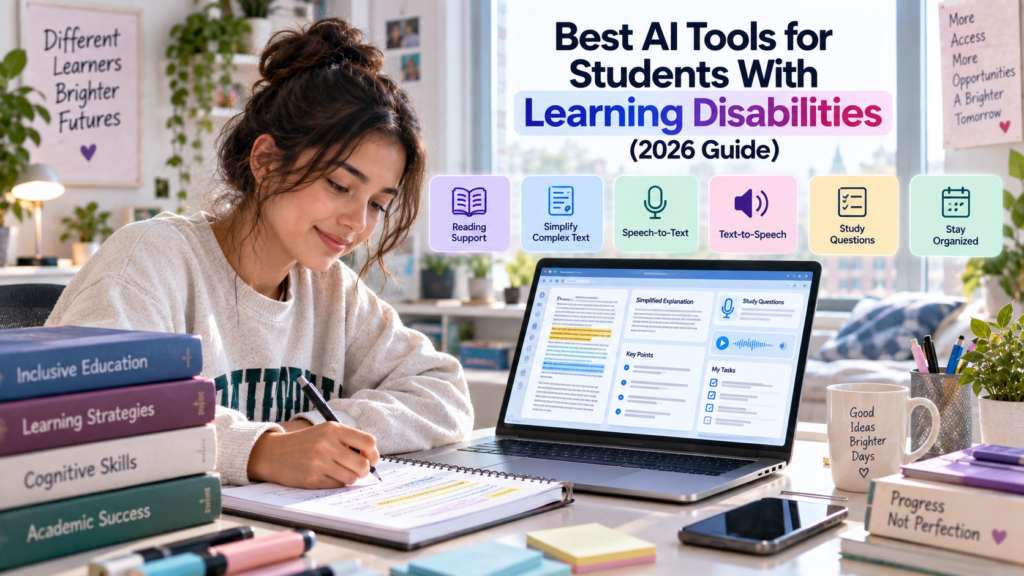
Quick Answer
The best AI tools for students with learning disabilities depend on the specific academic task a student wants to make easier.
For reading and accessibility, Microsoft Immersive Reader is a strong option because it provides features such as read-aloud, line focus, adjustable spacing, and syllable support. For understanding difficult material and studying, ChatGPT, Microsoft Copilot, and Google Gemini can provide explanations, guided practice, summaries, and study questions. NotebookLM is especially useful when a student wants to work from a defined collection of class notes, readings, or other sources.
For writing support, Grammarly can help with clarity, grammar, brainstorming, and revision. For speech-to-text and lecture transcription, Otter.ai can be useful when recording and transcription are permitted. Notion AI can help students organize information, summarize notes, and manage academic work inside a structured workspace.
A practical starting point looks like this:
| 🎓 Academic Need | ✨ Tool to Consider |
|---|---|
| 🔊 Read digital text aloud | Microsoft Immersive Reader |
| 🧠 Understand difficult material | ChatGPT, Copilot, or Gemini |
| 📚 Study from your own sources | NotebookLM |
| ✍️ Writing and revision | Grammarly |
| 🎙️ Speech-to-text and lecture notes | Otter.ai |
| 🗂️ Organizing academic information | Notion AI |
| 🚀 Broad AI study support | ChatGPT, Copilot, or Gemini |
There is no single best tool for every student. Learning disabilities are diverse, and students may have very different preferences and academic challenges.
The best approach is to identify one specific friction point, choose the simplest tool that addresses it, and keep the student’s own thinking at the center of the workflow.
Introduction
Academic work can involve many different kinds of friction.
A student may find a long reading assignment difficult to process, prefer listening to text rather than reading silently, need additional help understanding complicated instructions, or find it easier to express ideas verbally before turning them into written work.
Another student may mainly need help organizing notes, breaking a large assignment into smaller tasks, reviewing information, or keeping research material structured.
These differences matter when choosing AI tools.
The phrase learning disabilities covers a broad range of learning differences and support needs. It would be misleading to assume that every student with a learning disability has the same experience or benefits from the same technology.
AI and accessibility tools can nevertheless provide practical academic support in areas such as reading, writing, comprehension, note-taking, studying, research, planning, and organization.
For example, a text-to-speech feature can provide another way to access written information. Speech-to-text can let a student capture ideas verbally. An AI assistant can explain a complicated concept, generate practice questions, or turn notes into a structured study guide.
These technologies should not be confused with medical treatment.
AI tools do not diagnose, treat, or cure learning disabilities. Their role in this context is much more practical: they can change how students interact with academic information and reduce unnecessary friction around certain tasks.
The strongest workflow also keeps the student actively involved.
If AI summarizes a chapter, the student should still understand the original material. If AI helps organize an essay, the student should remain responsible for the ideas and final submission. If an AI tool produces an explanation, important information should be checked against the original source.
The goal is not to automate learning.
The goal is to make learning more accessible and manageable.
What Can AI Tools Do for Students With Learning Disabilities?
AI and accessibility technologies can support different stages of academic work.
Reading support
Text-to-speech can convert written material into spoken audio. This can give students another way to work through supported documents, webpages, or notes.
Microsoft Immersive Reader combines read-aloud with features such as line focus, adjustable spacing, syllabification, and other reading controls. Microsoft specifically describes Immersive Reader as supporting students with dyslexia and dysgraphia in OneNote.
Explain difficult concepts
Generative AI can provide another explanation when a textbook paragraph, lecture concept, or set of instructions is difficult to understand.
Students can ask an AI assistant to:
• explain a concept step by step
• define unfamiliar terminology
• compare two ideas
• provide an example
• identify the main idea
• ask questions to check understanding
ChatGPT’s Study Mode, for example, can guide students with questions, explanations, step-by-step support, and checks for understanding. It can also work with uploaded class materials when file uploads are available.
Summarize information
AI can turn lengthy notes or source material into a shorter overview.
The important limitation is that a summary can leave out qualifications or contain errors. Students should use summaries as a starting point rather than automatically treating them as complete substitutes for original academic sources.
Organize notes
AI can identify themes, extract key points, create outlines, and organize information into a more structured format.
This can be particularly helpful when notes contain many disconnected ideas.
Support writing
AI can help students brainstorm, outline, review grammar, identify unclear sentences, and improve organization.
That is different from asking AI to produce an entire assignment for submission.
Create study questions
AI can convert notes into quizzes, flashcards, short-answer questions, or concept checks.
For learning, asking the student to answer first is often more useful than immediately revealing the answer.
Organize research
AI can help group research notes into themes, compare concepts, and create an outline.
However, students should verify citations, claims, quotations, statistics, and other important information against the original sources.
Break down large assignments
An AI assistant can turn a large assignment into smaller actions:
Understand → Research → Organize → Draft → Review → Submit
This can make a vague task easier to approach without promising that AI will automatically manage the student’s deadlines.
Text-to-speech and speech-to-text
Text-to-speech changes:
Text → Spoken audio
Speech-to-text changes:
Speech → Written text
These tools solve different problems and can be combined with AI when appropriate.
Academic support is not medical treatment
AI can support academic workflows, but it is not a diagnosis or treatment for a learning disability.
The appropriate goal is practical support for learning—not medical intervention.
How We Selected These AI Tools
The tools in this guide were selected according to their usefulness for real academic tasks, rather than popularity alone.
The main criteria included:
• reading accessibility
• writing support
• comprehension
• note-taking
• document handling
• studying
• research organization
• academic planning
• ease of use
• accessibility features
• free options where relevant
• privacy considerations
• platform availability
• current feature availability
• important limitations
Another important criterion was role separation.
A general AI assistant and a reading-accessibility tool should not be evaluated as though they perform the same job.
For example, Immersive Reader is primarily a reading-accessibility technology. ChatGPT, Copilot, and Gemini are broader AI assistants. Grammarly focuses on writing assistance. Otter focuses strongly on transcription. NotebookLM is designed around working with sources.
This distinction helps prevent a common problem in AI tool articles: recommending eight products that essentially do the same thing.
No personal testing claim is made in this guide. Current capabilities were checked against provider documentation, but features, plans, and availability can change.
Best AI Tools for Students With Learning Disabilities
ChatGPT
Best for: Understanding difficult material and interactive study support
ChatGPT is a strong general-purpose option when a student needs help understanding, organizing, or practicing academic material.
Its current Study Mode is designed around learning rather than simply returning an answer. It can ask guiding questions, explain concepts in layers, work through problems step by step, check understanding, and create practice questions. Students can also provide class notes, readings, worksheets, slides, or other supported materials when file uploads are available.
Microsoft Copilot
Best for: Learning support inside the Microsoft ecosystem
Microsoft Copilot becomes especially relevant for students who already use Microsoft 365 for schoolwork.
Microsoft’s education offering includes Study and Learn, a learning-focused agent designed to help students understand concepts, practice, study, and improve their work without simply doing the work for them. Microsoft says it can use student materials such as documents and PDFs and includes interactive activities such as flashcards, quizzes, matching, and fill-in-the-blank exercises.
Google Gemini
Best for: Guided learning and working with academic files
Gemini’s learning tools include Guided Learning, which provides tutor-like support and can work with uploaded files. Google documents practice questions, hints, feedback, and other educational features within Gemini’s learning experience.
For students who already work in Google’s ecosystem, Gemini can provide a flexible way to explore concepts, review academic material, and learn through guided interaction.
NotebookLM
Best for: Studying from a defined set of sources
NotebookLM is particularly useful when the student wants AI support based on a specific collection of material.
Instead of treating the entire internet as the context for a question, students can organize course-related sources into a notebook and use the tool to work with that material.
Its value is not simply that it can summarize. It can help create a more structured relationship between the student’s sources and the study process.
Microsoft Immersive Reader
Best for: Reading accessibility
Immersive Reader is different from the general-purpose AI assistants in this list.
It is primarily an accessibility and reading-support technology available across supported Microsoft products. Microsoft documents features including read-aloud, line focus, adjustable line and font spacing, syllabification, picture dictionary support, and other reading controls.
Speechify
Best for: Text-to-speech and listening to written material
Speechify focuses heavily on converting written content into spoken audio.
Its current pricing information describes a free option alongside a Premium plan with additional capabilities. Feature availability can vary by plan.
Grammarly
Best for: Writing clarity, grammar, and revision
Grammarly is most useful when the student’s challenge is getting ideas into clear written form or reviewing a draft.
Its student-oriented materials describe writing suggestions, brainstorming, outlining, and AI-supported assistance.
Otter.ai
Best for: Speech-to-text, transcription, and lecture-note workflows
Otter is useful when spoken information needs to become searchable written information.
Its education offering includes transcription, captions, automated notes, summaries, and other features designed for lectures and learning environments.
Notion AI
Best for: Organizing notes, tasks, and academic information
Notion AI is useful when organization itself is the main challenge.
Notion’s current AI features can summarize existing content, help with writing, work with files, and support workspace-based information retrieval. Its AI Meeting Notes feature can also transcribe and summarize meetings, although availability depends on plan and setup.
Best AI Tools for Students With Learning Disabilities Compared
AI Tools Comparison Table
Compare these AI and accessibility tools based on reading, writing, studying, note-taking, organization, and general academic support.
| AI Tool | Best For |
Reading Support |
Writing Support |
Study/ Notes |
Organization | Free Option | Best Use |
|---|---|---|---|---|---|---|---|
| ChatGPT | Explanations and study | Medium | High | High | High | Yes, availability varies by feature | Guided learning |
| Microsoft Copilot | Microsoft-based learning | Medium | High | High | High | Depends on account | Study and Learn |
| Google Gemini | Guided learning and files | Medium | High | High | Medium | Availability varies | Explain and practice |
| NotebookLM | Source-based study | Medium | Medium | High | High | Standard access available | Study from sources |
| Immersive Reader | Reading accessibility | High | Low | Low | Low | Free | Read digital text |
| Speechify | Text-to-speech | High | Low | Medium | Low | Yes | Listen to reading |
| Grammarly | Writing and revision | Low | High | Medium | Medium | Yes | Improve your draft |
| Otter.ai | Transcription | Medium | Low | High | Medium | Free option | Lecture transcription |
| Notion AI | Notes and organization | Low | Medium | High | High | Limited | Organize academic work |
The table should be treated as a starting point rather than a ranking.
For example, a student who mainly needs text-to-speech should not choose ChatGPT simply because it has more general AI capabilities. A dedicated reading tool may be more appropriate.
Which AI Tool Is Best for Different Student Needs?
Best for reading
Microsoft Immersive Reader is a strong starting point for supported Microsoft content because its feature set is specifically focused on reading accessibility. Speechify is another option when dedicated text-to-speech is the priority.
Best for difficult concepts
ChatGPT, Microsoft Copilot, and Gemini are strong general-purpose options for explanations, guided learning, and step-by-step support.
Best for notes
NotebookLM is a strong choice when notes and other source materials are the center of the study workflow.
Best for writing
Grammarly is particularly useful for revision, clarity, grammar, and drafting support.
Best for text-to-speech
Immersive Reader or Speechify are more natural choices than a general chatbot when the primary task is simply accessing text through audio.
Best for speech-to-text
Otter.ai is worth considering for transcription-heavy workflows, provided recording is allowed.
Best for research
NotebookLM is useful for source-centered research organization. General AI tools can help brainstorm and organize ideas, but research claims should always be verified against original sources.
Best for study support
ChatGPT, Copilot, Gemini, and NotebookLM each offer useful study workflows, but their strengths differ.
ChatGPT emphasizes interactive guided learning. Copilot’s Study and Learn experience emphasizes active learning and practice. Gemini offers Guided Learning and file-based study. NotebookLM focuses on working from selected sources.
Best for organization
Notion AI is a natural option when notes, tasks, projects, and information need to live in one structured workspace.
Best free option
There is no universal winner.
Immersive Reader stands out because Microsoft provides it as a free learning-accessibility feature in supported products. Other services provide different levels of free access, trials, or limited features depending on the product and plan.
Best overall
For broad academic support, ChatGPT, Microsoft Copilot, or Gemini can be strong starting points.
For reading accessibility, consider Immersive Reader or Speechify.
For source-based study, consider NotebookLM.
For writing, consider Grammarly.
For transcription, consider Otter.ai.
For academic organization, consider Notion AI.
How Students With Learning Disabilities Can Use AI for Studying
Make Difficult Material Easier to Understand
Start with the smallest section that is causing difficulty.
Instead of asking:
“Explain this whole textbook.”
Try:
“Explain this two-paragraph section in clear language. Keep the technical meaning and define the unfamiliar terms.”
This creates a more manageable interaction and makes it easier to compare the explanation with the original.
Listen to Long Reading Material
Use text-to-speech when listening helps you work through written material.
A student can follow the text visually while listening, pause at difficult sections, and return to important passages.
Immersive Reader provides read-aloud and reading-focus features, while Speechify is centered on text-to-speech.
Turn Notes Into Study Materials
AI can transform notes into:
• key concepts
• definitions
• flashcards
• review questions
• short study outlines
• concept comparisons
The student should still check that the generated material reflects the original notes accurately.
Create Study Questions
A useful learning prompt is:
“Quiz me one question at a time. Wait for my answer before giving feedback. If I am wrong, give me a hint before explaining the answer.”
This makes AI part of an active learning process instead of a shortcut to the answer.
Organize Research
Use AI to group notes into themes, identify repeated ideas, and create an outline.
Keep the original source connected to each important claim.
Do not let AI invent missing sources or citations.
Support Writing and Editing
A useful workflow is:
Your ideas → Your rough draft → AI feedback → Your revision → Final check
This keeps the student responsible for the actual work.
Prepare for Exams
Ask AI to create:
• practice questions
• short-answer questions
• concept comparisons
• flashcards
• “explain why” questions
• mixed-topic review
The best use is often to attempt the answer first and then use AI for feedback.
How to Use AI to Make a Difficult Assignment More Manageable
A large assignment can feel vague when it is represented as one task.
A better workflow is:
Assignment → Understand → Identify Difficult Parts → Break Down → Prioritize → Complete → Review
Step 1: Understand
Read the assignment requirements and identify what the instructor is actually asking for.
Step 2: Identify Difficult Parts
Mark the instructions, research requirements, concepts, or formatting rules that are unclear.
Step 3: Break Down
Turn the assignment into smaller actions.
Step 4: Prioritize
Identify which tasks must happen first.
Step 5: Complete
Work through the smaller tasks while keeping the assignment requirements visible.
Step 6: Review
Compare the completed work with the original instructions.
Copyable AI Prompt
” Help me break this assignment into manageable steps without doing the assignment for me. First identify the main goal and every requirement. Then divide the work into small tasks, explain which tasks should come first, and create a simple checklist. Point out anything in the instructions that I may need to clarify with my instructor. Do not invent requirements or complete the final assignment.”
This approach makes AI a planning assistant rather than an assignment replacement.
Best AI Prompts for Students With Learning Disabilities
AI for Reading and Comprehension

AI can support comprehension by changing the way information is presented.
Useful tasks include:
• summarizing long passages
• explaining difficult terminology
• identifying key points
• comparing concepts
• breaking large passages into smaller sections
• generating comprehension questions
• providing alternative explanations
• reading supported text aloud through accessibility tools
One useful distinction is:
Summary: What does the material say?
Explanation: What does it mean?
Students may need either one depending on the problem.
If a textbook paragraph is simply too long, a summary may help.
If the paragraph contains a concept that does not make sense, an explanation may be more useful.
AI output should still be checked.
OpenAI’s current Study Mode documentation warns that the system can make mistakes, and Google similarly cautions that Gemini responses may contain errors.
For important academic information, use:
AI explanation → Original source → Compare → Verify → Your own understanding
That final step matters. The goal is not merely to obtain a simpler sentence. The goal is to understand the material.
AI for Writing and Editing
Writing support can be useful at several stages.
Brainstorming
AI can help turn a vague topic into questions worth exploring.
Outlining
A student can provide the assignment requirements and their own ideas and ask AI to organize them into a logical structure.
Draft review
AI can identify grammar problems, unclear wording, repetition, and organizational issues.
Readability
A writing assistant can identify sentences that are difficult to follow and explain why they may be unclear.
Proofreading
AI can help find obvious errors before submission.
The student should still make the final decisions.
A useful rule is:
AI suggests. The student decides.
Do not assume that an AI-generated rewrite is automatically better.
Also follow the course or university’s AI policy. An instructor may allow grammar assistance or accessibility tools while restricting generative writing.
AI for Notes, Documents, and Research
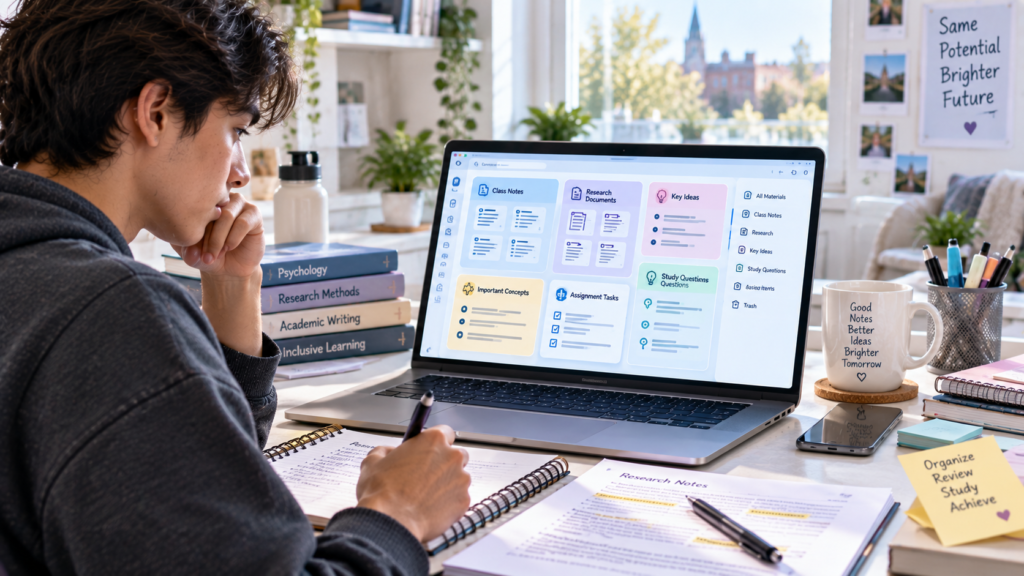
AI can reduce the manual effort involved in processing academic material.
For example, students can ask an appropriate tool to:
• summarize notes
• extract key ideas
• group related concepts
• create review questions
• compare two readings
• identify missing areas in notes
• create a research outline
• organize project information
NotebookLM is particularly relevant when the workflow is based around a defined collection of sources.
Notion AI is useful when the student wants to keep notes, projects, tasks, and AI-assisted organization inside one workspace. Notion currently documents capabilities for summarizing content, working with files, improving writing, and searching connected information depending on plan and configuration.
The key principle is source awareness.
Keep the original document available.
For important research, verify:
• quotations
• statistics
• definitions
• dates
• technical claims
• citations
• conclusions
AI should make source material easier to work with, not make the source unnecessary.
Text-to-Speech and Speech-to-Text for Academic Work
These technologies are related but solve opposite problems.
Text-to-Speech
Text → spoken audio
Useful for:
• listening to supported readings
• following text while it is read aloud
• reviewing written material through audio
• accessing long digital documents differently
Immersive Reader provides read-aloud functionality, while Speechify focuses specifically on text-to-speech.
Speech-to-Text
Speech → written text
Useful for:
• dictating ideas
• creating a rough draft verbally
• capturing notes
• transcribing permitted lectures
• recording thoughts before organizing them
Otter is designed around transcription and education-oriented lecture workflows.
Choose based on the task
If the challenge is accessing written text, text-to-speech may help.
If the challenge is getting ideas onto the page, speech-to-text may help.
If both are useful, a student can combine them:
Listen → Think → Speak → Transcribe → Organize → Review
The exact combination should be based on what actually reduces friction for that student.
AI for Planning and Academic Organization
AI can help turn a large academic goal into smaller actions.
For example:
Research paper
can become:
- Read assignment requirements
- Identify research question
- Find permitted sources
- Read and organize evidence
- Create an outline
- Draft
- Revise
- Check citations
- Compare with assignment requirements
AI can also help create weekly study plans or project milestones.
But AI does not automatically know every real-world constraint.
A student should verify actual:
• deadlines
• instructor requirements
• exam dates
• submission systems
• group responsibilities
• course policies
Use AI for planning assistance, not as the final authority on academic requirements.
A Simple AI-Assisted Study Workflow
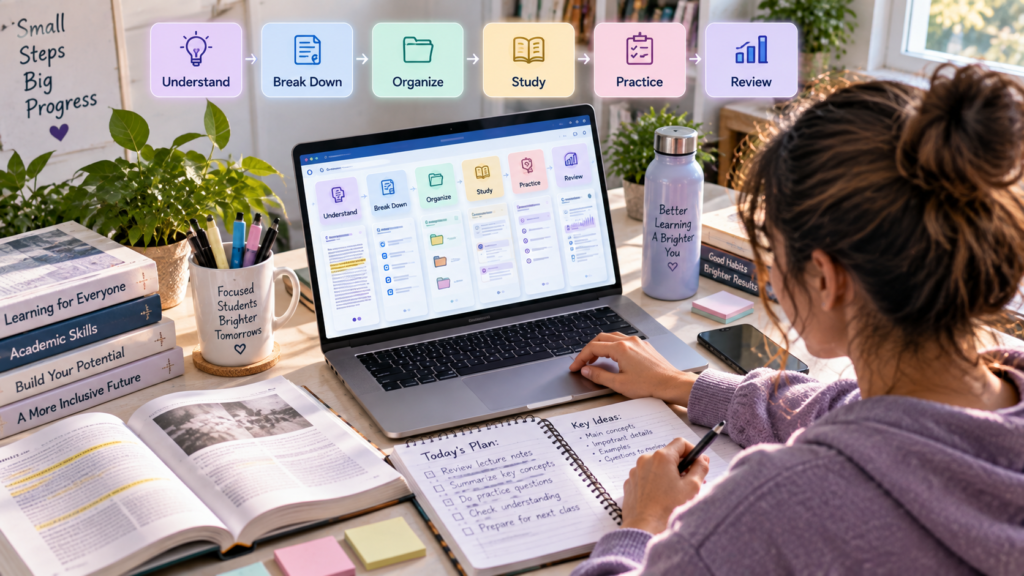
A simple workflow is:
Understand → Break Down → Organize → Study → Practice → Review
Understand
Identify what the material is about and which part is confusing.
Break Down
Divide the topic into smaller concepts.
Organize
Turn notes and information into a logical structure.
Study
Review concepts using summaries, explanations, or notes.
Practice
Answer questions without looking at the answer first.
Review
Return to the original source and correct misunderstandings.
This workflow is intentionally simple.
A student does not need a separate AI tool for every stage.
In many cases, one general AI assistant plus one accessibility feature is enough.
What AI Cannot Do for Students With Learning Disabilities
AI cannot:
• diagnose a learning disability
• treat a learning disability
• cure a learning disability
• guarantee academic success
• guarantee comprehension
• guarantee better reading or writing performance
• replace teachers
• replace academic advisors
• replace professional or accessibility support
• perfectly understand an individual student’s needs
• guarantee that generated information is correct
AI can provide useful academic support, but it cannot determine the right educational or professional support for every student.
Academic Integrity and Responsible AI Use
AI use should always follow the rules of the student’s school, university, instructor, or program.
Policies can differ between:
• schools
• departments
• instructors
• courses
• assignments
A course may allow accessibility technology while restricting generative AI writing.
Another course may allow brainstorming but require the final writing to be completed independently.
Responsible use includes:
• checking the course AI policy
• using AI only where permitted
• verifying important information
• keeping your own thinking involved
• writing your own work when required
• disclosing AI assistance when required
• checking whether accessibility tools are permitted
• keeping track of how AI was used
A useful distinction is:
Accessibility support: Helps you access or interact with information.
Academic substitution: Produces work you are expected to complete yourself.
Those are not necessarily treated the same way by an institution.
Student Privacy When Using AI Tools
Students should think carefully before uploading academic material to an AI service.
Potentially sensitive material can include:
• personal information
• student identification information
• private correspondence
• unpublished research
• confidential assignments
• classmates’ information
• instructor materials
• recorded lectures
• copyrighted course material
Use the minimum information necessary.
Do not assume that every AI provider handles data in the same way.
For example, Google’s current Gemini privacy documentation says that some data may be reviewed by trained human reviewers and advises users not to enter confidential information they would not want a reviewer to see or Google to use to improve its services.
OpenAI’s current consumer-services documentation says content from individual services such as ChatGPT may be used to improve models unless the user opts out through the available privacy controls.
The practical lesson is simple:
Check the current privacy settings and policy for the exact service and account you are using.
For school-managed accounts, also check institutional rules.
When dealing with recordings, remember that privacy is not only about the AI company. Recording or transcribing other people may require permission or be restricted by school policy or applicable law.
Common Mistakes Students Make When Using AI
Trusting AI blindly
A fluent response can still be wrong.
Using AI instead of learning
If AI provides every answer immediately, the student loses opportunities to practice.
Using too many tools
Nine tools are not automatically better than two.
Building complicated workflows
If the technology becomes harder to manage than the original task, simplify it.
Skipping verification
Important academic information should be checked against original sources.
Uploading unnecessary information
Only provide what the tool actually needs.
Ignoring school policies
A feature being technically available does not mean its use is permitted for every assignment.
Assuming one tool works for everyone
Students have different preferences, strengths, challenges, devices, and academic environments.
AI Myths vs Reality for Students With Learning Disabilities
A practical approach: Start with the student’s actual academic challenge, choose the smallest set of tools that can help, and keep the student actively involved in the learning process.
Expert Tips for Using AI Effectively
- Identify the exact problem first. Decide whether the main friction is reading, writing, comprehension, notes, studying, or organization.
- Choose the simplest useful tool. Do not add software unless it solves a real problem.
- Use accessibility features when they are enough. A built-in read-aloud feature may be more practical than another AI subscription.
- Break long material into smaller sections. Smaller chunks are easier to understand and verify.
- Ask for explanations, not just summaries. Explanation can be more useful when the real problem is understanding.
- Keep your own thinking active. Try answering questions before asking AI for the solution.
- Verify important information. Always return to the original source when accuracy matters.
- Protect personal and academic information. Upload only what is necessary.
- Check assignment policies. Rules can differ between courses.
- Simplify when the workflow becomes complicated. Technology should reduce friction, not create another project.
- Combine AI with human support. Teachers, advisors, accessibility professionals, and other support systems remain important.
- Choose based on the task, not the hype. The most advanced tool is not automatically the most useful tool for you.
Conclusion
The best AI tools for students with learning disabilities are not determined by how many features a product has.
The better question is:
What academic task do I need help with?
For reading, Microsoft Immersive Reader and Speechify can provide text-to-speech and reading-support options. For difficult concepts and interactive study, ChatGPT, Microsoft Copilot, and Google Gemini offer different forms of guided learning. NotebookLM is useful for source-based study. Grammarly can support writing and revision. Otter.ai can help with permitted transcription workflows, while Notion AI can support academic organization.
The right combination depends on the individual student.
A student who needs help accessing long digital readings may benefit most from text-to-speech. Another student may need a study assistant that explains difficult concepts. Someone else may primarily need help organizing notes or turning spoken ideas into written drafts.
The most effective approach is therefore not to collect as many AI tools as possible.
Instead:
Identify the friction → Choose the right support → Keep your own thinking involved → Verify important information → Follow academic and privacy rules.
AI and accessibility technologies can make academic work more manageable, but they should support learning rather than replace it.
Continue Learning
Only confirmed, relevant IndiaAITools articles should be linked here. Because inventing internal URLs would violate the site’s internal-linking rules, no unverified URLs are included in this draft.
Potential internal-link placements should be added only after the corresponding live IndiaAITools pages are confirmed, particularly for topics covering:
Build a simple workflow: Choose tools based on the task you actually need help with—such as reading, writing, studying, or organizing—rather than using more tools than necessary.
Frequently Asked Questions About AI Tools for Students With Learning Disabilities
Common questions about using AI tools for academic support, reading, writing, studying, organization, and responsible use.
What are the best AI tools for students with learning disabilities?
There is no single best tool. ChatGPT, Copilot, Gemini, and NotebookLM can support studying and comprehension, while Immersive Reader and Speechify can support reading, Grammarly can help with writing, Otter can support transcription, and Notion AI can help with organization.
Can AI help with reading?
Yes. Text-to-speech tools can provide another way to access written material, while AI assistants can summarize or explain difficult sections.
Can AI explain difficult material?
Yes. AI assistants can explain concepts, define terminology, provide examples, break information into smaller sections, and create questions for practice.
Can AI organize notes?
Yes. AI can summarize notes, identify key concepts, group related ideas, and turn information into study materials. NotebookLM and Notion AI can be particularly useful for structured note workflows.
Can AI help with writing?
Yes. AI can support brainstorming, outlining, grammar checking, clarity, proofreading, and draft review when those uses are permitted by the course or institution.
Can AI read text aloud?
Some AI and accessibility tools can. Microsoft Immersive Reader provides read-aloud functionality, while Speechify focuses on text-to-speech.
Can AI convert speech to text?
Yes. Tools such as Otter provide transcription, and many devices and productivity applications also include dictation features. Students should check whether recording or transcription is permitted before using it for a class.
Is AI a treatment for learning disabilities?
No. AI tools are not a treatment or cure for learning disabilities. They can provide practical academic and accessibility support.
Is it safe to upload student notes?
It depends on the service, account, document, and privacy settings. Avoid unnecessary personal or confidential information, review the provider’s current privacy controls, and follow school policies.
Should students use multiple AI tools?
Only when each tool solves a distinct problem. A student might combine a text-to-speech tool with a study assistant, for example. Using many tools without a clear purpose can make academic work more complicated.
Remember: The most useful AI workflow is usually one that solves a specific academic problem while keeping the student actively involved in understanding, reviewing, and making decisions.