Quick Answer
The best AI tools for elementary students depend on the child’s age, learning goal, and whether the tool provides appropriate parent or teacher oversight. Khanmigo is designed for guided academic support, while Canva Education is useful for creative school projects. Gemini for Education, MagicSchool, Brisk Teaching, and NotebookLM can also support structured learning when provided through appropriate school or adult-managed environments.
Parents and teachers should check each tool’s age requirements, account rules, privacy practices, and current features before allowing a child to use it. AI should be used to explain concepts, provide practice, and support learning—not simply complete a child’s schoolwork.
In short: The right AI tool for an elementary student is the one that matches the child’s learning need, follows the applicable age and access rules, protects personal information, and keeps an adult involved when appropriate.
Introduction
AI is becoming part of the education technology landscape, but choosing an AI tool for an elementary-school student is different from choosing one for a college student or adult.
For children in grades K–5, the important question isn’t simply, “Which AI tool is the most powerful?”
It is:
“Which tool fits this child’s age, learning goal, school environment, and level of adult supervision?”
That distinction matters because many popular AI applications were originally designed for general audiences rather than young children. Their age requirements, account rules, privacy practices, and available safeguards can also differ depending on whether a child uses a personal account or a school-managed education account.
Some education-focused platforms have built-in teacher or parent oversight. For example, Khan Academy provides Khanmigo access through parent/guardian-linked accounts or eligible school and district arrangements. Google also provides education-specific AI access through Google Workspace for Education.
This guide focuses on practical educational AI tools that can support elementary learning rather than simply listing popular AI products.
The recommendations below consider:
• What the tool actually does
• How it can support elementary learning
• Whether the child can use it directly or needs adult or school access
• Age and access requirements
• Privacy considerations
• Important limitations
• Where parent or teacher involvement makes sense
AI should supplement teaching and practice—not replace a child’s teacher, parent, textbook, or own thinking.
Best AI Tools for Elementary Students
There isn’t one universally best AI tool for every elementary student.
A second grader practicing reading needs something different from a fifth grader preparing a science project. A teacher may also need a different tool than a parent helping with homework.
The following tools represent different ways AI can be used in elementary education.
Khanmigo by Khan Academy
Guided learning instead of simply giving students the answer
💡 What It Does
Khanmigo is Khan Academy’s AI-powered tutor and teaching assistant. It is designed to guide learners toward understanding rather than simply giving them answers. It can support subjects including math, science, coding, history, and humanities.
🎓 How an Elementary Student Might Use It
Instead of asking:
A student could ask for help understanding why they made a mistake in a math problem or ask for a simpler explanation of a concept.
This creates an opportunity for the AI to function as a learning aid rather than simply an answer generator.
🍕 Example
A fifth grader is learning fractions and doesn’t understand why two fractions have different denominators.
Ask Khanmigo for a step-by-step explanation using something familiar, such as dividing a pizza into different numbers of equal pieces.
The child can then attempt a similar problem independently.
⚠️ Important Limitations
- Khanmigo should not be treated as automatically available to every child.
- Access can depend on the account type and whether access is provided through a parent, guardian, school, or district.
- Khan Academy recommends adult guidance for younger learners using its AI features.
🔐 Age, Privacy & Access Notes
Parents and educators should check Khan Academy’s current requirements before creating or enabling access for a child. Depending on the setup, connected adults may also have visibility into a child’s activity.
Gemini for Education
Explanations, brainstorming, questions, and guided learning through school-managed accounts
💡 What It Does
Gemini is Google’s AI assistant. Within Google Workspace for Education, Gemini can be provided through a school-managed education environment.
Gemini for Education is not necessarily the same experience as a child using a personal Gemini account. The available features, controls, and protections can depend on how the account is managed.
🎓 How an Elementary Student Might Use It
With appropriate school or adult guidance, Gemini could help a student:
- Ask for an explanation of a science concept
- Generate practice questions
- Brainstorm ideas for a project
- Rephrase an explanation at a simpler reading level
- Explore questions about a topic being studied
🌊 Example
A fourth grader is learning about the water cycle.
Instead of asking AI to write a complete assignment, the student could ask:
The student can then explain the concepts in their own words.
⚠️ Important Limitations
- AI-generated explanations can contain mistakes, so important information should be checked.
- A parent or teacher should make sure the tool is being used through the appropriate account.
- Students should follow their school’s rules for using AI in schoolwork.
🔐 Age, Privacy & Access Notes
Google’s education environment has different rules and protections from consumer accounts. Schools and administrators can control access and available features.
Parents should therefore check whether the child is using a school-managed account or a personal account before assuming the same rules apply.
Canva Education
Creative projects, presentations, visual learning, storytelling, and classroom projects
🎨 What It Does
Canva is primarily a visual creation platform rather than an AI tutor. Its education environment provides tools for students and teachers to create presentations, posters, videos, documents, and other learning materials.
Canva also includes AI-powered features within its education ecosystem, which can support certain creative and content-generation tasks.
🧑🎨 How an Elementary Student Might Use It
A student could use Canva to create:
- 🔬 A science presentation
- 📚 A visual vocabulary board
- 📖 A book-report presentation
- 🗓️ A timeline
- 📌 A classroom poster
- 📕 A digital story
- ➗ A visual explanation of a math concept
☀️ Example
A third grader is learning about the solar system.
Instead of asking AI to write the entire project, the student could create a visual presentation with:
A teacher or parent can review the information before the project is submitted.
⚠️ Important Limitations
- Canva is not primarily an AI tutor. Its strongest use for elementary students is creative learning and communication rather than replacing instruction.
- AI-generated content can contain factual errors, so students should verify important information.
🔐 Age, Privacy & Access Notes
Canva has specific education eligibility and access rules for younger students. Parents and educators should use the appropriate Canva Education pathway and check current requirements.
MagicSchool / MagicStudent
Teacher-guided AI learning activities and structured classroom use
🪄 What It Does
MagicSchool is an education-focused AI platform with teacher tools and student-facing experiences. MagicStudent provides AI learning tools designed for K–12 environments.
This is not simply an open AI chatbot that a child is expected to use independently. MagicSchool describes student access as educator-assigned and controlled, with teacher oversight built into the experience.
🏫 How an Elementary Student Might Use It
A teacher might assign an AI-supported activity involving:
- 💡 Brainstorming
- ✍️ Writing feedback
- ❓ Question generation
- 🔎 Concept exploration
- 📝 Practice activities
- 💬 Classroom discussion
The teacher remains responsible for deciding what activity is appropriate for the students and how the AI should be used.
🔬 Example
A teacher is teaching a fourth-grade science unit.
A structured AI-supported learning activity.
Students explore the science topic within the assigned activity.
The teacher can guide the learning process rather than leaving students to use an unrestricted chatbot independently.
⚠️ Important Limitations
- MagicSchool is particularly relevant to school-managed and teacher-guided environments.
- Its usefulness depends heavily on how the school or teacher configures the experience.
- Educators should decide which AI-supported activities are appropriate for their students.
🔐 Age, Privacy & Access Notes
Student access can depend on school or teacher setup. Educators should review the platform’s current privacy and student-access policies before implementation.
Brisk Teaching
Teacher-created AI learning activities and guided student practice
💡 What It Does
Brisk Teaching is primarily a K–12 educator platform. Its student-facing tools can provide AI-supported learning experiences controlled by teachers.
This makes Brisk different from recommending a general AI chatbot to a child. Students can work within learning activities designed and managed by educators.
🎓 How an Elementary Student Might Use It
A teacher could create an activity around:
- ✍️ Writing
- 🔎 Inquiry
- 🗣️ Debate
- 👩🏫 Tutoring
- 📊 Formative assessment
- 📝 Practice
The student works inside an activity designed by the teacher rather than starting with a completely open-ended AI conversation.
📝 Example
A fifth-grade teacher could create a writing activity in which students brainstorm reasons supporting a position, receive AI-supported guidance, and then produce their own final response.
Students develop their own ideas.
The AI helps support the activity created by the teacher.
The student creates and submits their own work.
⚠️ Important Limitations
- Brisk is primarily teacher-facing, so its student experience depends on teacher or school setup.
- Educators should review AI-generated material before assigning it to students.
🔐 Age, Privacy & Access Notes
Student access and available features can depend on the school’s or teacher’s configuration.
Educators should check Brisk’s current student-access and privacy information before using the platform with younger learners.
NotebookLM
Source-based learning with teacher-provided notes and classroom materials
📚 What It Does
NotebookLM is an AI research and study assistant that can work with supplied sources. For elementary students, it is worth mentioning with an important qualification: it is not necessarily an independent AI tutor that a child should use on their own.
NotebookLM is most useful in this context when a teacher or school provides the learning materials students are expected to work with. This keeps the activity focused on known classroom sources rather than unrestricted questions about the wider internet.
🏫 How an Elementary Student Might Use It
With a teacher-managed setup, a student could work with:
- 📒 Class notes
- 📄 Teacher-provided documents
- 📖 Reading materials
- 📝 Study resources
The teacher can decide which classroom materials students should use and how NotebookLM fits into the learning activity.
🇺🇸 Example
A teacher provides a collection of classroom materials about the American Revolution.
Students receive a structured collection of notes, documents, or reading resources.
Students explore the American Revolution using the supplied classroom materials.
Students can check the AI’s response against the original classroom materials rather than treating the AI response as the final authority.
⚠️ Important Limitations
- NotebookLM is more naturally suited to older learners and structured school use than completely independent elementary-age AI use.
- The exact features available can depend on the type of Google account and administrator settings.
- Students should still compare AI-generated responses with the original classroom sources.
🔐 Age, Privacy & Access Notes
School administrators control access in Google Workspace for Education environments. Parents and teachers should check the current account configuration, age requirements, and school policies before using NotebookLM with younger students.
Quick Comparison: AI Tools for Elementary Students
| Tool | Best Use | Elementary Access Model | Adult / Teacher Guidance |
|---|---|---|---|
|
Khanmigo
|
Guided tutoring and academic help | Parent-linked child account or eligible school/district | Strongly recommended |
|
Gemini for Education
|
Explanations, questions, and brainstorming | School-managed Google Workspace for Education | Recommended |
|
Canva Education
|
Visual projects and creative learning | K–12 education environment | Teacher / school involvement |
|
MagicSchool
|
Structured AI learning activities | Educator / school-enabled | Built around teacher oversight |
|
Brisk Teaching
|
Teacher-created AI activities | Teacher-controlled student experiences | Built around teacher oversight |
|
NotebookLM
|
Working with supplied learning materials | School-managed education environment | Recommended |
The key point is that access model matters as much as AI capability.
A powerful tool with no appropriate child access pathway may be a poor fit for an elementary learner, while a less general-purpose tool designed around teacher oversight may fit a classroom activity better.
How AI Tools Can Help Elementary Students
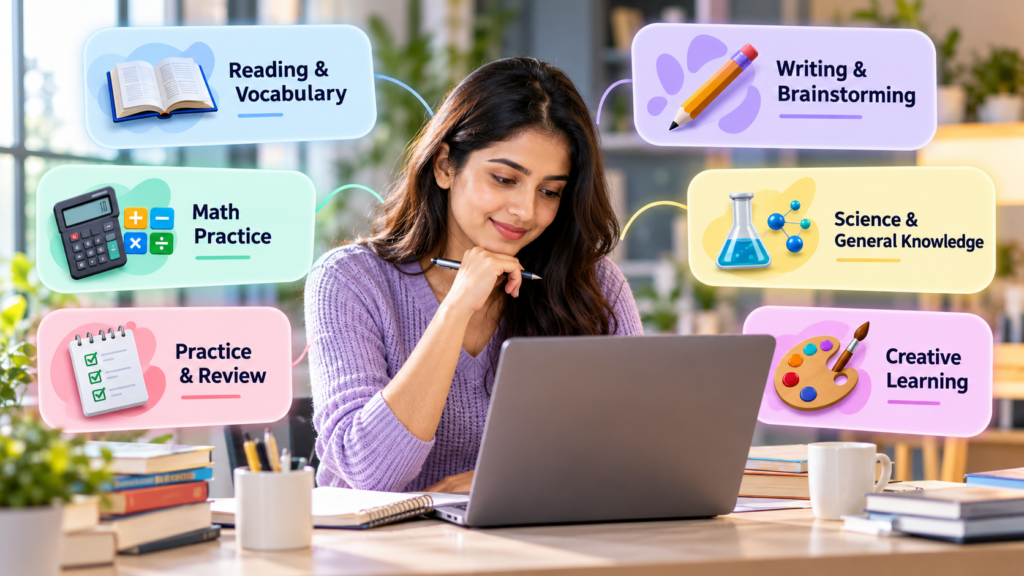
AI can support several areas of elementary learning when adults use it deliberately.
The most useful applications are generally supportive rather than substitutive.
Reading and Vocabulary
AI can help turn a difficult word or concept into a simpler explanation.
For example, a parent or teacher could ask an appropriate education tool to:
• Explain an unfamiliar word
• Give age-appropriate examples
• Generate practice questions
• Create vocabulary exercises
• Explain a passage in simpler language
Children should still spend time reading the original material.
AI explanations should supplement reading—not replace it.
Writing and Brainstorming
AI can be useful during the early stages of writing.
For example, a student might need to write about an animal.
Instead of asking AI:
“Write my report.”
The student could ask for:
• Three questions they could research
• Possible topics to explore
• Ideas to organize
• Feedback on whether their own explanation is clear
The student should then write the final response themselves when the assignment requires independent work.
Math Practice
AI can explain mathematical concepts in different ways, which can be useful when a child doesn’t understand the first explanation.
For example:
“Explain fractions using a pizza example.”
The student can then solve similar problems independently.
However, math is an area where AI errors can matter. A convincing-looking explanation can still contain a calculation mistake.
For important schoolwork, compare the answer with the student’s textbook, teacher-provided solution, or another trusted educational source.
Science and General Knowledge
AI can help children explore questions such as:
• Why does the Moon appear to change shape?
• How do plants make food?
• Why do some materials float?
• What causes rain?
The best use is often to encourage follow-up questions.
A student learns more by asking “Why?” and then “Can you give me an example?” than by copying a long AI-generated paragraph.
Practice and Review
AI can also help create practice opportunities.
For example, after learning multiplication, a child might use an appropriate educational tool to practice similar problems.
Teachers can also use AI to create differentiated activities, review questions, or classroom exercises.
This is particularly useful when the adult remains responsible for reviewing the material before it reaches the student.
Creative Learning
Creative AI tools can help students turn learning into projects.
Examples include:
• Digital stories
• Presentations
• Posters
• Visual explanations
• Timelines
• Classroom projects
Tools such as Canva Education can be particularly useful here because the learning task involves creating and communicating information rather than simply receiving an AI answer.
How Parents and Teachers Can Help Children Use AI

For elementary students, adult involvement is often more important than the specific AI model.
1. Start with the Learning Goal
Before opening an AI tool, ask:
What is the child actually trying to learn?
For example:
• Understand fractions
• Practice vocabulary
• Brainstorm a story
• Review science concepts
• Prepare for a classroom quiz
Then choose a tool that fits that goal.
2. Check the Access Rules First
Don’t assume that because an AI service is available on the internet, a child is permitted to use it.
Check:
• Minimum age
• Parent-consent requirements
• School account requirements
• Teacher invitations
• Regional availability
• School/district policies
This is especially important for elementary students because age requirements can vary substantially between services.
3. Keep the Child Involved
The goal shouldn’t be:
AI → answer → child copies
A better pattern is:
Child attempts → AI helps → child thinks → child checks → child completes
The child should remain an active participant in the learning process.
4. Ask AI to Explain Rather Than Simply Answer
A useful prompt structure is:
“Explain this in simple words and then give me a similar practice problem.”
This encourages understanding.
For a math question, the adult could also ask the tool to explain the method without immediately revealing the final answer.
5. Review Important Outputs
Even education-focused AI can make mistakes.
Parents and teachers should review important AI-generated:
• Facts
• Calculations
• Explanations
• Study materials
• Research claims
• Homework guidance
The important principle is simple: AI output should be treated as something to check, not automatically as an authoritative answer.
How to Check AI Answers
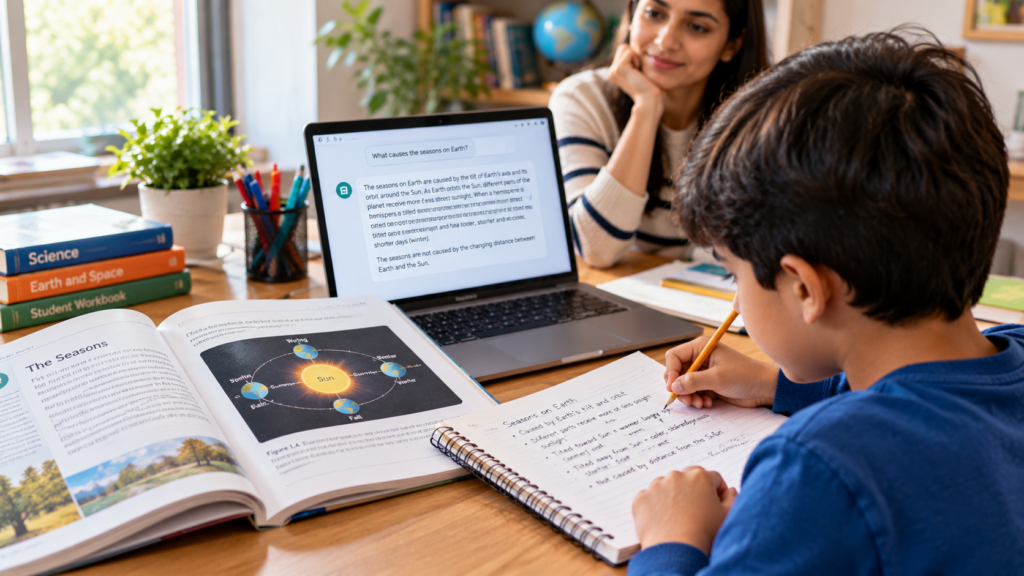
Elementary students don’t need a complicated fact-checking system.
A simple habit is:
Ask → Check → Compare → Confirm
1. Ask
Use AI to get an explanation or answer.
2. Check
Look for anything that seems strange, confusing, overly certain, or inconsistent with what the child learned.
3. Compare
Compare the answer with:
• The textbook
• Teacher-provided material
• A trusted educational website
• Classroom notes
• Another reliable source
4. Confirm
If the answer still isn’t clear, ask a parent, teacher, librarian, or another trusted adult.
The important lesson is:
AI can provide an answer without guaranteeing that the answer is correct.
Privacy Considerations for Parents and Teachers
Elementary students generally don’t need to provide large amounts of personal information to get help with ordinary schoolwork.
Before using an AI tool, adults should check:
Age Requirements
Does the service permit children of this age to use it?
Account Requirements
Does the child need an individual account, a parent-managed account, or a school account?
Data Collection
What information does the service collect?
Personal Information
Avoid entering unnecessary sensitive information about a child.
That can include things such as:
• Full personal details
• Home address
• Private contact information
• Passwords
• Sensitive family information
• Unnecessary identifying information
Privacy Settings
Review available privacy and account controls.
School Policies
If the tool is being used for schoolwork, check the school’s or district’s AI and student-data policies.
Responsible AI Use for Elementary Students
AI should make learning more understandable, not eliminate the learning process.
Use AI to Understand
Good use:
“Explain why this answer is correct.”
Less useful use:
“Give me the answer so I can submit it.”
Try First When Appropriate
If the assignment is designed to test whether a student can solve something independently, the child should attempt it before turning to AI.
AI can then help identify where the student got stuck.
Don’t Copy Blindly
Even if an AI response sounds polished, the student should understand what it says.
For younger children, adults can ask:
“Can you explain that in your own words?”
That simple step can reveal whether the child actually understands the material.
Follow Teacher and School Rules
Some assignments may allow AI assistance.
Others may require students to complete the work independently.
The teacher’s instructions and school policy should take priority.
Common Mistakes to Avoid
Trusting Every AI Answer
AI can sound confident while being wrong.
Better approach: Ask → Check → Compare → Confirm.
Ignoring Age Requirements
A tool being educational doesn’t automatically mean every child can create an account.
Better approach: Check the current official age and access rules.
Giving AI Too Much Personal Information
Children don’t need to provide unnecessary personal information just to ask a homework question.
Better approach: Keep prompts focused on the learning task.
Letting AI Complete Every Assignment
If AI does all the thinking, the child may finish the assignment without learning the underlying skill.
Better approach: Use AI for explanations, practice, brainstorming, and feedback where allowed.
Choosing a Tool Because It Is Popular
Popularity doesn’t tell you whether a product is appropriate for a second grader.
Better approach: Evaluate the learning task, age/access rules, privacy practices, and adult controls.
Assuming “Educational” Means “Error-Free”
An education-focused AI tool can still generate an incorrect answer.
Better approach: Review important outputs.
Conclusion
The best AI tools for elementary students aren’t necessarily the tools with the most advanced AI models.
For K–5 learning, the more important questions are:
• Does the tool fit the child’s learning goal?
• Is the child’s age permitted?
• Is the access method appropriate?
• Does the tool provide useful educational support?
• Are parents or teachers able to guide its use?
• What happens to the child’s information?
• Can the child verify what the AI says?
• Does the tool encourage learning rather than simply producing answers?
Khanmigo offers guided academic support with parent and school access pathways. Gemini for Education provides an education-specific environment for schools using Google Workspace. Canva Education is useful for visual and creative projects. MagicSchool and Brisk focus heavily on teacher-guided student experiences, while NotebookLM can be useful when students work with school-provided source materials.
For elementary students, the strongest approach is usually not:
“Give the child an AI chatbot and let them figure it out.”
It is:
Choose the right tool → check the age/access rules → define the learning goal → keep an adult involved when appropriate → verify important information → let the child do the actual thinking.
Used that way, AI can become a useful learning support without becoming a replacement for teachers, parents, classroom instruction, or the child’s own developing skills.
Continue Learning
Explore these related guides to discover more ways AI tools can support students with different learning needs.
Best AI Tools for Students With ADHD
Explore tools that can help students organize tasks, plan study sessions, and manage academic responsibilities.
Explore the GuideBest AI Tools for Dyslexic Students
Discover AI tools that may support reading, writing, and more accessible learning experiences.
Explore the GuideBest AI Tools for Students With Learning Disabilities
Learn how different AI tools can support students with varied learning needs and academic challenges.
Explore the GuideFrequently Asked Questions
Find answers to common questions about choosing AI tools, homework support, learning benefits, and online safety for elementary students.
What is the best AI tool for elementary students?
There isn’t one universal best AI tool for every elementary student. The appropriate choice depends on the child’s grade, learning task, school environment, access requirements, and level of adult supervision.
For guided academic tutoring, Khanmigo is designed around learning support, while Canva Education is more useful for creative projects and visual communication. School-managed platforms such as Gemini for Education, MagicSchool, and Brisk offer other approaches to structured AI use.
Can elementary students use AI for homework?
Yes, in some situations. However, whether a child should use a particular tool depends on its age requirements and the teacher’s assignment policy.
AI can be useful for:
- Explaining difficult concepts
- Practicing academic skills
- Brainstorming ideas
- Reviewing learning material
- Generating practice questions
Is AI safe for elementary students?
No AI tool should be described as completely risk-free. Safety depends on the product, account type, age requirements, configuration, content controls, privacy practices, and adult supervision.
Some educational products provide safeguards for school environments, but parents and educators should still review the product’s current policies and available controls before allowing children to use it.
Should parents supervise children using AI?
For elementary students, adult guidance is generally a sensible approach, particularly when an AI tool is conversational or can generate open-ended content.
The amount of supervision can depend on the child’s age, the tool being used, and whether the experience is managed by a school. Parents and teachers should explain appropriate use, review relevant settings, and help children question AI-generated answers rather than accepting them automatically.
Can AI help elementary students learn math?
Yes. Depending on the tool, AI can explain mathematical concepts, demonstrate different approaches, and create additional practice questions.
However, mathematical answers should still be checked. Children should also practice solving problems independently so they can develop their own mathematical understanding and problem-solving skills.
Can AI help elementary students with reading?
Yes. Depending on the tool, AI can explain unfamiliar vocabulary, simplify an explanation, generate reading comprehension questions, or provide additional practice.
However, AI should supplement actual reading rather than replace the assigned material. Children still need opportunities to read, understand texts, and develop their own comprehension skills.
Should children use ChatGPT for elementary homework?
Parents and educators should check the current age rules before considering ChatGPT for a young child.
OpenAI states that ChatGPT is not intended for children under 13. Users aged 13–18 require parental consent. OpenAI also specifies that when ChatGPT is used educationally with children under 13, the actual interaction must be conducted by an adult.
Official reference: Is ChatGPT safe for all ages? — OpenAI
The framing here is what I appreciated most: for K-5 the question isn’t which tool is most powerful, but which one fits the child’s age, learning goal and level of adult supervision. Pointing out that age rules and safeguards can differ between a personal account and a school-managed education account is something many lists skip entirely. Do you have a sense of how parents can check, in practice, whether a tool their child uses at home is the school-managed version or a general consumer account?
Thank you for raising this important question! Parents can start by checking how their child signs in. If the account is provided through the school’s email, Google Workspace for Education, Microsoft school account, or a school-managed learning platform, it may be an education-managed account. However, the sign-in method alone doesn’t guarantee that the account has school-managed protections.
Parents should confirm with the child’s teacher or school IT administrator, check the account type and privacy settings, and review the tool’s official education-account documentation. It’s also worth remembering that school-managed access does not automatically mean every feature is suitable for every age group.
I’ll consider adding a practical checklist for parents to make this distinction clearer.